> ## Documentation Index
> Fetch the complete documentation index at: https://klarity.ai/docs/llms.txt
> Use this file to discover all available pages before exploring further.
# Audit & compliance
> Turn a walkthrough of how a process runs into audit-ready documentation — steps, risks, controls, and gaps — and monitor drift from an approved standard over time.
export const NeedHelp = () =>
Need help? Use the in-app chat — click the chat bubble in the bottom-right corner of Klarity Architect (staffed 24×5) — or email support@klarity.ai.
;
Klarity turns a walkthrough of how a process actually runs into audit-ready documentation — capturing the steps, the risks at each step, and the controls that mitigate them, flagging where controls are missing, and letting you monitor drift from an approved standard over time.
**Before you start:** a Klarity workspace, the process you want to document, and your control framework or compliance standard on hand to load as reference.
## Who it's for
Compliance, internal audit, controllership, and risk teams who need accurate, repeatable process-and-controls documentation — for SOX, and for other control frameworks and audit requests.
## What you get
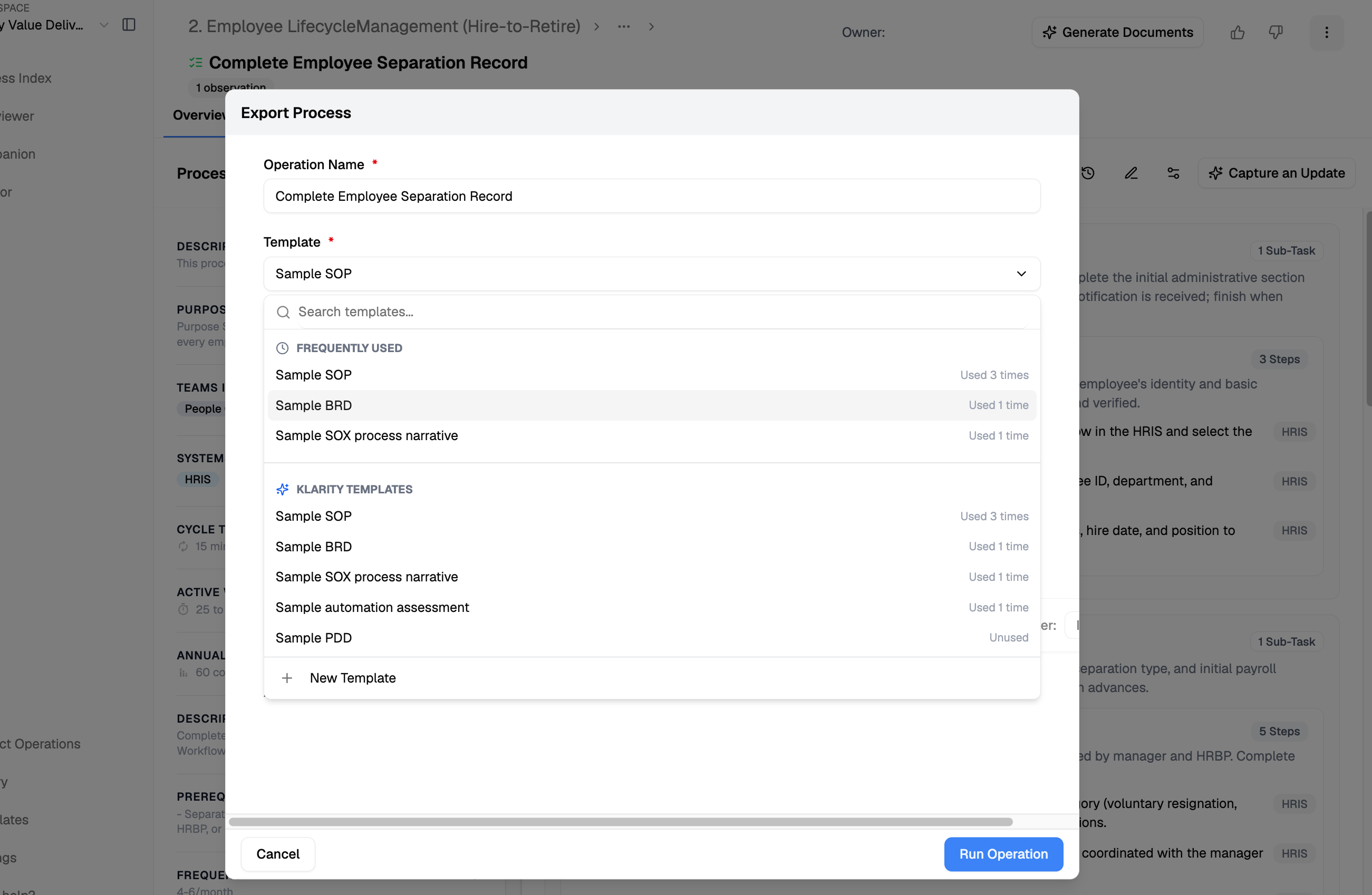
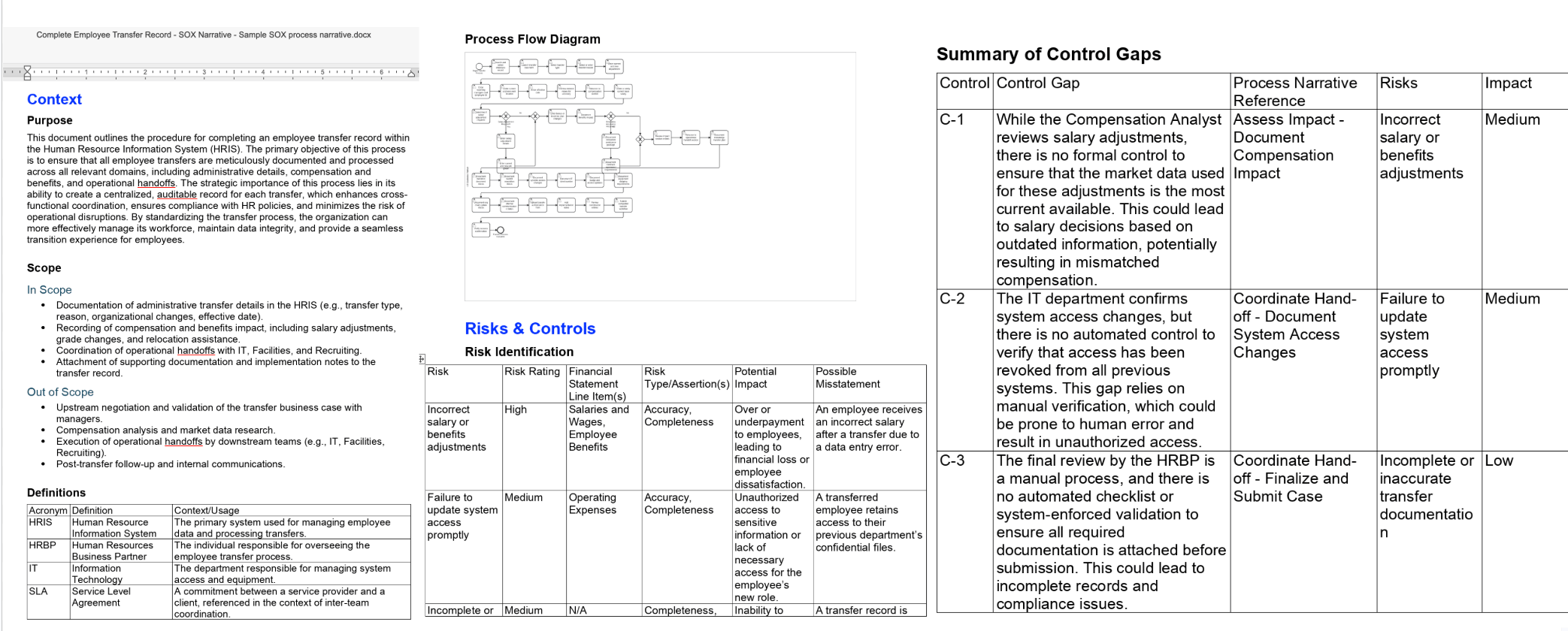
The **SOX Narrative** template produces a document that outlines the steps of the process as performed, identifies the risks at each step, evaluates the controls that mitigate those risks, and summarizes control gaps where a risk isn't covered. For frameworks beyond SOX, use or customize a template that mirrors your control catalog.
**How Klarity accelerates this:** instead of interviewing control owners and hand-writing narratives, you capture the process once and generate an audit-ready narrative — steps, risks, controls, and gaps — in minutes, then keep it current instead of rebuilding it each cycle.
## Walkthrough: documenting a process for SOX
Say your controllership team needs SOX documentation for **invoice approval in accounts payable**. Here's the end-to-end flow.
Most audit documentation is done at the **individual process node** — one node per process you're putting under a control lens (for example, `Order to Cash → Billing → Invoice Approval`). We recommend capturing current state node-by-node: it keeps risks and controls mapped cleanly to a specific process. You *can* capture at a broader level — walking an **entire value stream** end to end when you want a wider view — but for controls work, node-by-node is cleaner. Create the node(s) you'll document in the **Process Index**.
Open the **Context Store** and add your control catalog, risk rubric, and compliance standards as reference — so Advisor assesses against *your* controls, not generic ones. Keep entries concise (the assessment criteria and decision rules, not whole documents). See [Refining the context store](/docs/user-docs/advanced/refining-the-context-store).
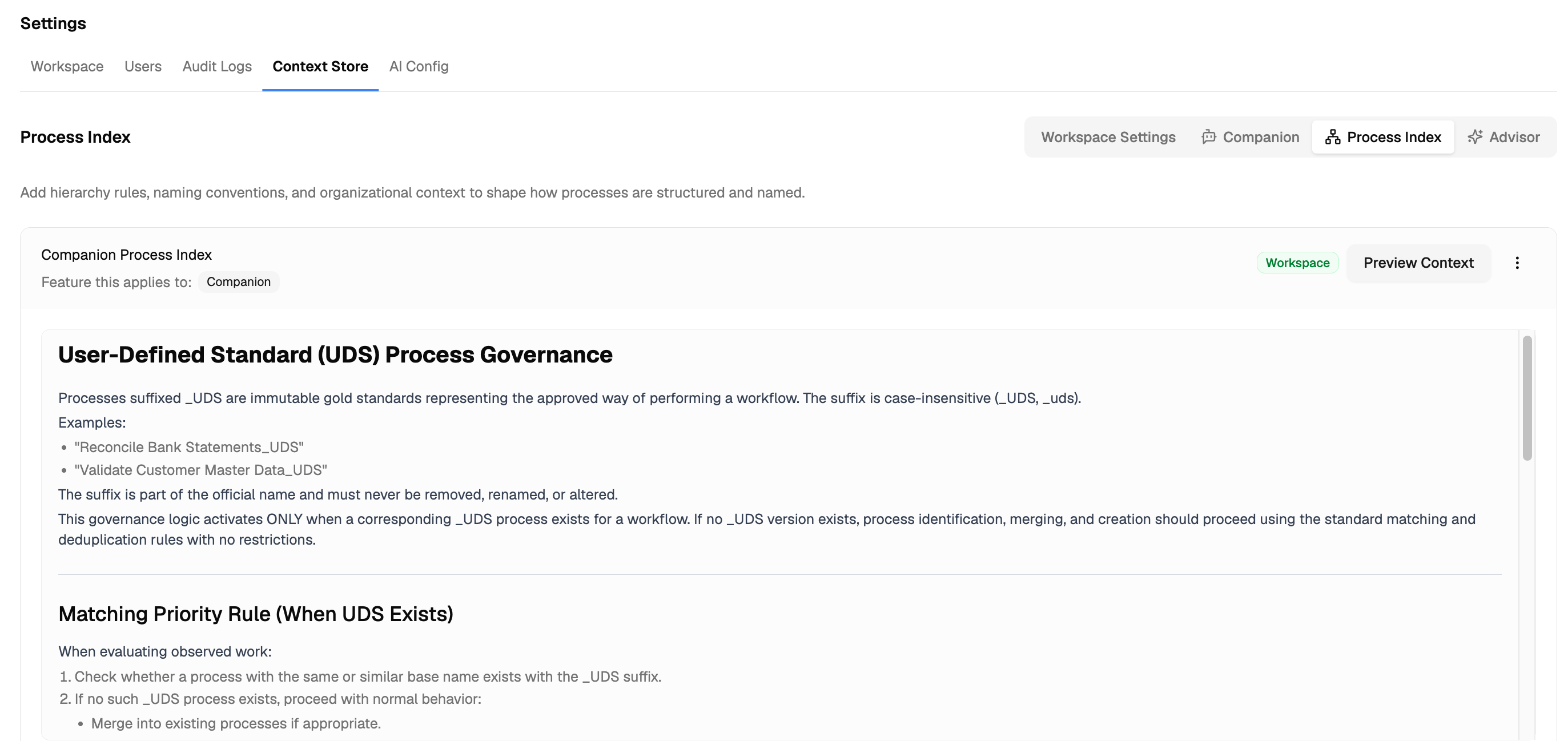 **Alternative — point Advisor at your framework file.** If your controls framework already lives as a document in your workspace library, you don't have to paste its contents into the Context Store. Instead, add a Context Store **rule** that tells Advisor to use that file as the source of truth — so the framework stays in one maintained document. For example:
```text Context Store rule theme={null}
When assessing controls, risks, or compliance for any process, use the file
"Controls_Framework_2026" in the workspace library as the authoritative control
catalog. Map each process step to the relevant control ID from that file, flag any
step with no matching control as a gap, and cite the control ID in the output.
```
Update the document and every assessment picks up the change — no Context Store edits needed.
Pick the capture method that fits:
* **Companion** — record the process owner doing invoice approval end to end.
* **AI Interviewer** — walk a control owner through it (Observation Mode for a free walkthrough, Q\&A Mode for targeted follow-ups on controls and exceptions).
* **File upload** — if you already have a recording or SOP.
See [Current State Discovery](/docs/user-docs/discover/capturing-current-state).
Klarity drafts; you refine. Before generating anything, review the captured process — confirm the steps, systems, and attributes are accurate, and fix anything the AI got wrong. Clean input is what makes the controls narrative reliable.
**Alternative — point Advisor at your framework file.** If your controls framework already lives as a document in your workspace library, you don't have to paste its contents into the Context Store. Instead, add a Context Store **rule** that tells Advisor to use that file as the source of truth — so the framework stays in one maintained document. For example:
```text Context Store rule theme={null}
When assessing controls, risks, or compliance for any process, use the file
"Controls_Framework_2026" in the workspace library as the authoritative control
catalog. Map each process step to the relevant control ID from that file, flag any
step with no matching control as a gap, and cite the control ID in the output.
```
Update the document and every assessment picks up the change — no Context Store edits needed.
Pick the capture method that fits:
* **Companion** — record the process owner doing invoice approval end to end.
* **AI Interviewer** — walk a control owner through it (Observation Mode for a free walkthrough, Q\&A Mode for targeted follow-ups on controls and exceptions).
* **File upload** — if you already have a recording or SOP.
See [Current State Discovery](/docs/user-docs/discover/capturing-current-state).
Klarity drafts; you refine. Before generating anything, review the captured process — confirm the steps, systems, and attributes are accurate, and fix anything the AI got wrong. Clean input is what makes the controls narrative reliable.
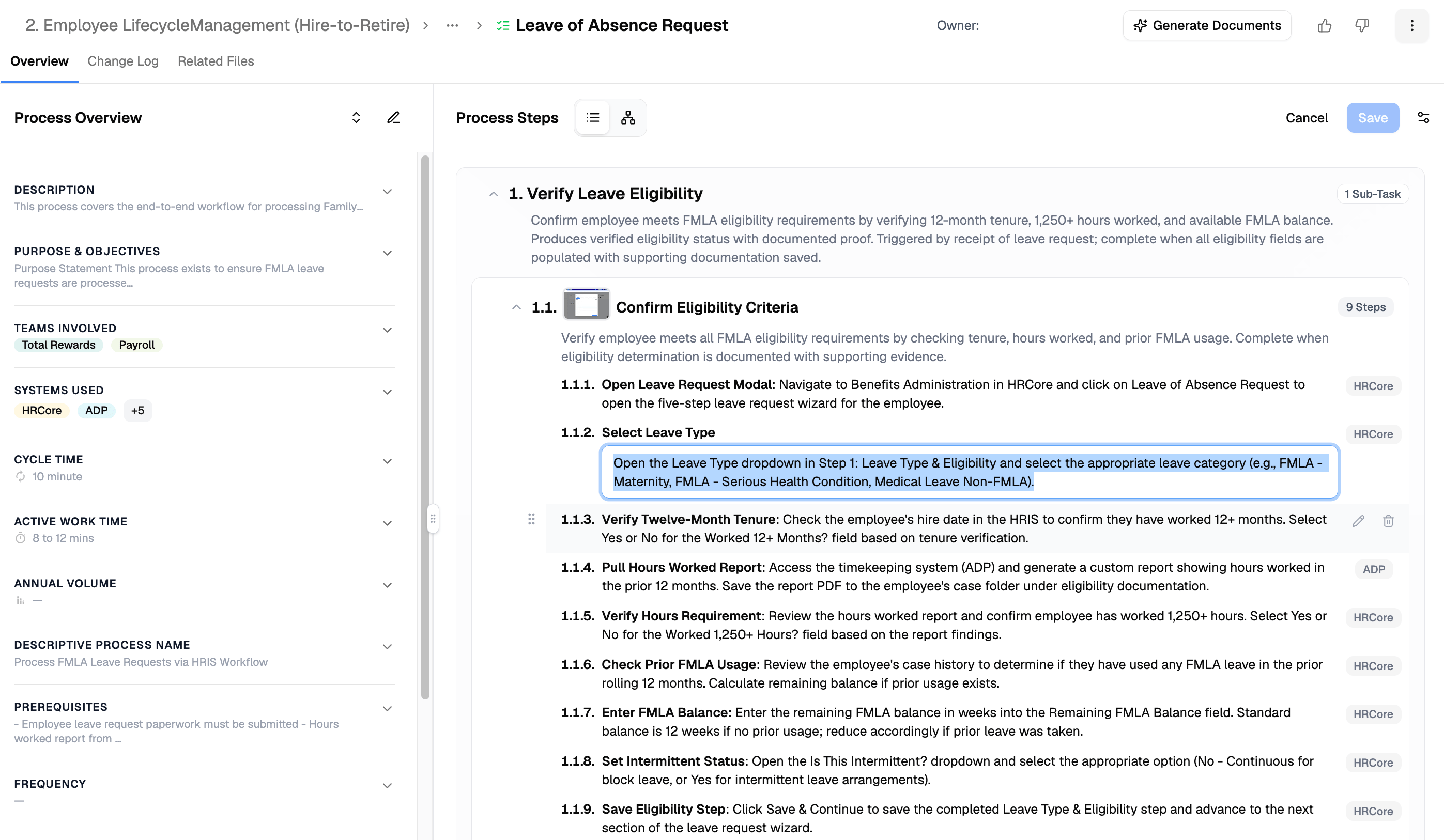 You have three ways to produce it — pick based on how packaged vs. custom you want the output:
* **From a template (packaged):** from the process node, click **Generate Documents** (or, from the **Artifact Operations** page, **+ Operation** in the top right), then select the **SOX Narrative** template and your captured input, and generate. Fastest, and consistent every time.
* **With Advisor:** ask Advisor to draft the narrative — for a **single** process, or **broadly** across a value stream or several processes in one pass.
* **With the Klarity MCP (your own platform):** connect the MCP to your MCP client (Claude, etc.), query your workspace as a company brain, and generate the narrative — or a custom variant — yourself.
However you generate it, the narrative lays out the steps, the risk at each step, the controls that mitigate them, and any control gaps.
You have three ways to produce it — pick based on how packaged vs. custom you want the output:
* **From a template (packaged):** from the process node, click **Generate Documents** (or, from the **Artifact Operations** page, **+ Operation** in the top right), then select the **SOX Narrative** template and your captured input, and generate. Fastest, and consistent every time.
* **With Advisor:** ask Advisor to draft the narrative — for a **single** process, or **broadly** across a value stream or several processes in one pass.
* **With the Klarity MCP (your own platform):** connect the MCP to your MCP client (Claude, etc.), query your workspace as a company brain, and generate the narrative — or a custom variant — yourself.
However you generate it, the narrative lays out the steps, the risk at each step, the controls that mitigate them, and any control gaps.
 **Template vs. Advisor vs. MCP:** the template is the fastest packaged output; Advisor is best for a single or broad narrative on demand; the Klarity MCP lets you query the company brain from your own platform and build exactly what you need.
With the narrative in hand, assess control coverage — run the prompts below in **Advisor**, or query your workspace via the **MCP**. This is where you find missing controls and confirm each risk is covered.
Where Advisor flags control gaps, have it draft a prioritized remediation plan (weighted by risk and complexity), then assign owners.
Once the narrative is validated, pin it as a **User-Defined Standard** (name the file ending in `_UDS`). From then on, ask Advisor to compare observed work against the standard so you catch control drift over time. See [Set your process standard (UDS)](/docs/user-docs/advanced/using-a-user-defined-standard).
**Your controls documentation stays evergreen.** Because the process lives in your Process Index and Companion keeps it current — the normal **Discover → Structure → Improve** loop — your narrative isn't a point-in-time artifact. Re-generate it any time the process changes, and let the UDS flag drift in between.
## Advisor prompts
```text Control coverage assessment theme={null}
Based on the captured process and our control framework, which controls are fully satisfied, partially satisfied, and unaddressed?
```
```text Compliance gap analysis theme={null}
Review this process against [regulation/standard]. Flag any step that relies on undocumented manual judgment, and recommend where a control should sit.
```
```text Remediation plan theme={null}
Generate a prioritized remediation plan for the outstanding control gaps, weighted by risk and complexity.
```
```text Control drift (with a UDS in place) theme={null}
Compare the current observed process against the approved _UDS standard — which steps or controls have drifted, and where?
```
## Tips
* Keep one process per narrative so risks and controls map cleanly.
* Re-generate after a process change rather than hand-editing the old narrative, so documentation stays tied to how work actually runs.
## Related
Build or tailor the SOX Narrative / control template.
Pin an approved standard and track deviations over time.
The analysis engine behind coverage & gap assessment.
**Template vs. Advisor vs. MCP:** the template is the fastest packaged output; Advisor is best for a single or broad narrative on demand; the Klarity MCP lets you query the company brain from your own platform and build exactly what you need.
With the narrative in hand, assess control coverage — run the prompts below in **Advisor**, or query your workspace via the **MCP**. This is where you find missing controls and confirm each risk is covered.
Where Advisor flags control gaps, have it draft a prioritized remediation plan (weighted by risk and complexity), then assign owners.
Once the narrative is validated, pin it as a **User-Defined Standard** (name the file ending in `_UDS`). From then on, ask Advisor to compare observed work against the standard so you catch control drift over time. See [Set your process standard (UDS)](/docs/user-docs/advanced/using-a-user-defined-standard).
**Your controls documentation stays evergreen.** Because the process lives in your Process Index and Companion keeps it current — the normal **Discover → Structure → Improve** loop — your narrative isn't a point-in-time artifact. Re-generate it any time the process changes, and let the UDS flag drift in between.
## Advisor prompts
```text Control coverage assessment theme={null}
Based on the captured process and our control framework, which controls are fully satisfied, partially satisfied, and unaddressed?
```
```text Compliance gap analysis theme={null}
Review this process against [regulation/standard]. Flag any step that relies on undocumented manual judgment, and recommend where a control should sit.
```
```text Remediation plan theme={null}
Generate a prioritized remediation plan for the outstanding control gaps, weighted by risk and complexity.
```
```text Control drift (with a UDS in place) theme={null}
Compare the current observed process against the approved _UDS standard — which steps or controls have drifted, and where?
```
## Tips
* Keep one process per narrative so risks and controls map cleanly.
* Re-generate after a process change rather than hand-editing the old narrative, so documentation stays tied to how work actually runs.
## Related
Build or tailor the SOX Narrative / control template.
Pin an approved standard and track deviations over time.
The analysis engine behind coverage & gap assessment.