> ## Documentation Index
> Fetch the complete documentation index at: https://klarity.ai/docs/llms.txt
> Use this file to discover all available pages before exploring further.
# Set your process standard (UDS)
> Pin an approved standard for a process with a _UDS document or node, and let Advisor compare observed work against it.
export const NeedHelp = () =>
Need help? Use the in-app chat — click the chat bubble in the bottom-right corner of Klarity Architect (staffed 24×5) — or email support@klarity.ai.
;
**Why set up a UDS?** Three common reasons:
1. **Lock in an approved standard.** Companion keeps your process documentation up to date with how work is actually done. A UDS lets you also keep a fixed, authoritative version of how the process *should* run — useful when you have compliance or audit requirements, or a defined set of steps you know produces the right outcome.
2. **Get standard-vs-reality comparisons from Advisor.** Once a UDS is in place, you can ask Advisor to compare observed work against your standard. It will highlight missing steps, extra steps, and sequence deviations.
3. **Keep a stable target while your processes keep evolving.** Your team keeps recording Companion sessions and your process index keeps improving — the UDS stays put as the reference point.
## What is a User-Defined Standard?
In Klarity Architect, a process container is a living representation of observed work: Companion updates it as new sessions come in. That is intentional — but it means there is no built-in place to pin a *target* standard separate from observed reality.
A User-Defined Standard (UDS) closes that gap. It is a document or process node whose name ends in `_UDS`. Rules you add to your context store tell Advisor and the Process Index to treat anything with that suffix as the approved standard, and to treat the observed process as current reality. From then on, Advisor can answer questions like "where are we deviating from the standard?" with a step-level comparison.
## Setup at a glance
**Estimated setup time: \~3–5 minutes.** Four steps:
1. **Set up your context store** — add the UDS rules below. This is the same for everyone, whichever method you use.
2. **Choose your method** — represent the standard as a related file or a sibling process node.
3. **Create and name your UDS** — generate the document or process node, making sure the name ends in `_UDS`.
4. **Use the platform** — ask Advisor standard-vs-reality questions as usual; it picks up the UDS automatically.
The rest of this article walks through each step in detail.
## Set up your context store
Do this first, before you pick a method. The context-store setup is the same for everyone — add both rules below so Advisor reads `_UDS` files correctly and the Process Index governs `_UDS` nodes correctly. With both in place, either method works.
### Rule 1 — related-file standards (Advisor)
Add this under your **Advisor** rules. It tells Advisor to treat any related file ending in `_UDS` as the approved standard:
````text theme={null}
```text wrap
For any related file on a process node that ends in _UDS treat this as a User Defined Standard. The content represents the steps of that process as they should be executed. When analyzing process steps within a process node: If there is a user-defined standard, treat the process steps within the process container as reality and the user-defined standard as the target or policy.
If you cannot extract the text from the docx file - DO NOT assume the process index details are the standard. Let the user know in the query you were unable to read the docx and it needs to index.
````
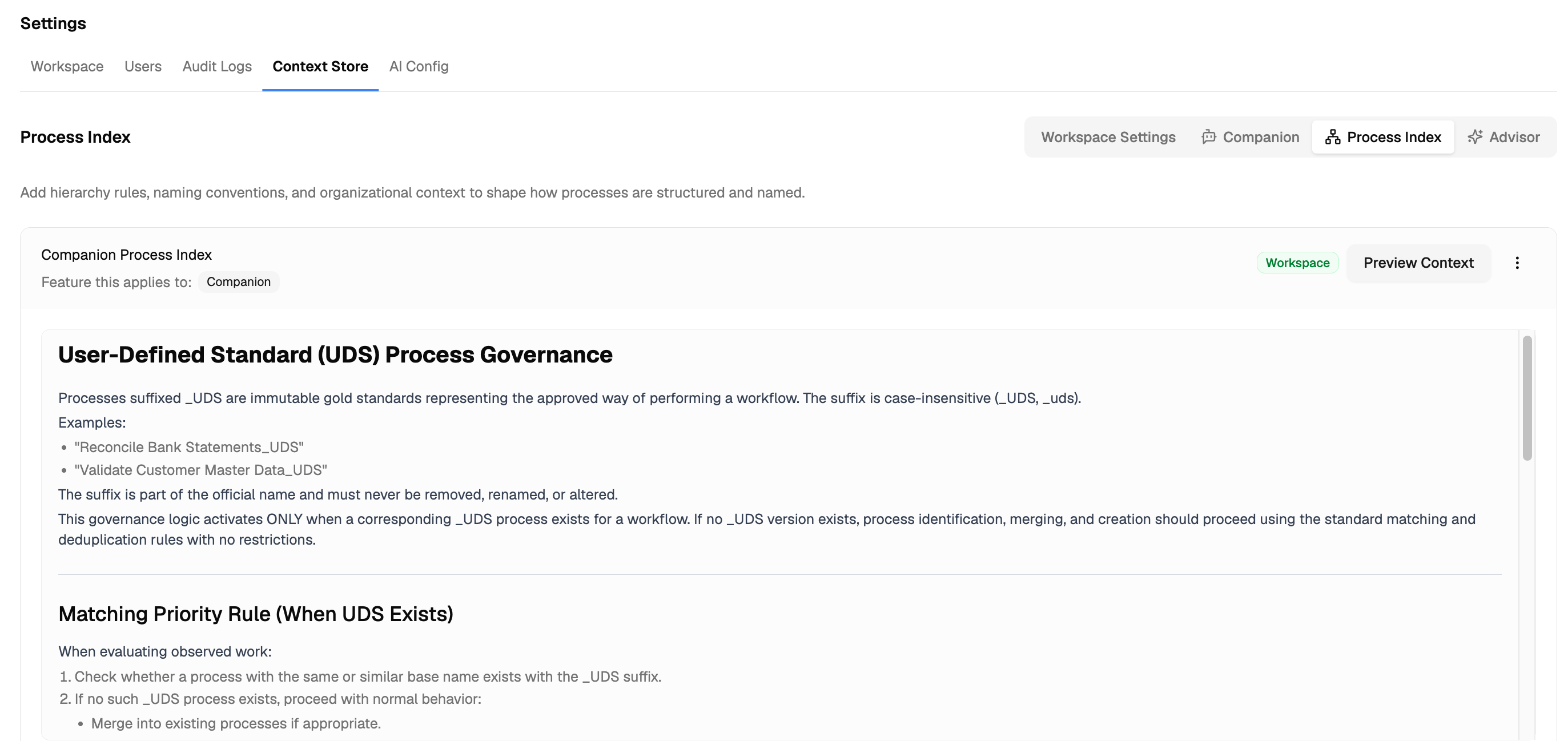 ### Rule 2 — process-node governance (Process Index)
Add this ruleset under each of the three **Process Index Rules** sections — **Companion**, **Interview**, and **File Upload**. The text is identical in all three places:
````text Governance ruleset expandable theme={null}
```text wrap Governance ruleset expandable
# User-Defined Standard (UDS) Process Governance
Processes suffixed _UDS are immutable gold standards representing the approved way of performing a workflow. The suffix is case-insensitive (_UDS, _uds).
Examples:
- "Reconcile Bank Statements_UDS"
- "Validate Customer Master Data_UDS"
The suffix is part of the official name and must never be removed, renamed, or altered.
This governance logic activates ONLY when a corresponding _UDS process exists for a workflow. If no _UDS version exists, process identification, merging, and creation should proceed using the standard matching and deduplication rules with no restrictions.
---
## Matching Priority Rule (When UDS Exists)
When evaluating observed work:
1. Check whether a process with the same or similar base name exists with the _UDS suffix.
2. If no such _UDS process exists, proceed with normal behavior:
- Merge into existing processes if appropriate.
- Create a new process if no match exists.
3. If a _UDS process exists and the observed work aligns with it on workflow shape or 2+ factors (input, steps, output), treat that _UDS node as the governing standard.
If alignment is confirmed, follow the UDS decision tree below.
---
## Decision Tree: Handling UDS Matches
When observed work matches a _UDS process:
1. Do NOT update, append to, or create an observation on the _UDS process.
2. Check if a non-UDS sibling exists:
- Same base name without the _UDS suffix
- Minor formatting differences (spacing, capitalization, singular/plural variations) still qualify
- Located under the same parent node
3. If a qualifying non-UDS sibling exists → CREATE_OBSERVATION on that sibling.
4. If no qualifying sibling exists → CREATE_PROCESS using the same name minus the _UDS suffix and place it as a sibling under the same parent node.
Only ONE non-UDS sibling should exist per _UDS process.
The non-UDS node represents current-state execution and evolves normally through observations.
---
## Core Rules
1. UDS Is Immutable
Never automatically update, merge into, expand, or structurally modify a _UDS process based on routine observations.
2. Parallel Current-State Node Required (When UDS Exists)
Observed execution that aligns with a _UDS workflow must be recorded against a non-UDS sibling — never against the _UDS node.
3. No Merge Across UDS and Non-UDS
Similar name and workflow shape do not justify merging when one node is suffixed _UDS.
4. Explicit Standard Updates Only
A _UDS process may only be modified when a user explicitly selects that _UDS process for refinement (for example, during an interviewer-led session intended to update the standard).
---
## Prohibitions
- Never auto-improve or expand a _UDS process based on observed deviations.
- Never rename a _UDS process to remove or alter the suffix.
- Never merge a _UDS node with its non-UDS counterpart.
- Never prevent normal process creation or merging simply because a _UDS node does not exist.
````
In plain terms: once these rules are in place, Companion will never overwrite your `_UDS` standard. New observations are routed to the current-state sibling — created automatically if it doesn't exist yet — and the standard only changes when you explicitly choose to refine it.
## Choose your setup method
With your context store set up, pick how you want the standard represented. Both work — choose based on how you want it to show up.
1. **As a related file** — a `_UDS` document attached to the process node. Best when you want a standard pinned to a single node without changing your process tree.
2. **As a sibling process node** — a separate `_UDS` process next to the observed one, forming a "UDS pair." Best when you want the standard to live in the process index itself, visible and navigable like any other process.
***
## Method 1: UDS as a related file
### Step 1 — Choose or create a template for the standard
Use whatever template represents the standard you want to lock (e.g. Klarity SOP, or a custom template you create for this). Keep it lean — include only:
1. Process steps
2. Policy (optional)
3. Key dependencies
No flowchart needed. The goal is a clean, prescriptive document — not another rich process artifact.
### Step 2 — Generate the standard document
Generate the document using whatever template represents the standard you want to lock (e.g. Klarity SOP or User Defined Standard). Two paths:
1. **From a video upload:** from the process node, click **Generate Documents** (or **+ Operation** on the Artifact Operations page), then select that template and your video.
2. **From an AI interview:** record the interview, then on the process node click **Generate Documents** and select that template.
### Step 3 — Name the file with the `_UDS` suffix
The filename **must end in `_UDS`**. This suffix is what the context-store rule keys off. Without it, Advisor treats the file as a generic related artifact and the standard-vs-reality comparison will not fire.
### Step 4 — Attach the file to the process node
Add the `_UDS` document as a **related file** on the process node you want Advisor to analyze. This wires the standard to the node.
***
## Method 2: UDS as a sibling process node (UDS pair)
Create a process node with the same name as the target process, suffixed with `_UDS`, as a sibling in the process index. Populate it using the **AI Interviewer** — interview the person who owns the standard and let Architect generate the process content.
The two nodes form a **UDS pair**: the `_UDS` node holds the approved standard; the non-UDS sibling holds current-state execution as captured by Companion.
You do not need to create the non-UDS sibling yourself — with the governance rules from [Set up your context store](#set-up-your-context-store) in place, Companion creates it automatically (same name minus the suffix) the first time it observes matching work. The `_UDS` suffix is case-insensitive (`_UDS` or `_uds`) and must never be removed or altered.
***
## What to expect once it's set up
When Advisor analyzes a node with a UDS:
* It automatically recognizes the `_UDS` file or node as the target standard.
* Questions about deviation compare observed process steps against the UDS as the reference.
* You get a step-level "standard vs. reality" delta: missing steps, extra steps, and sequence differences.
The UDS does not stop Companion from updating the observed process — that keeps working as usual. Your `_UDS` standard itself stays immutable: new observations are always recorded against the current-state version, and the standard only changes when you explicitly select it for refinement (for example, in an interviewer-led session intended to update it).
## When to contact support
Contact support if:
* Advisor is not recognizing your UDS even though the filename or node name ends in `_UDS` and the context-store rule is in place.
* You can't extract or re-index the UDS document (for example, Advisor reports it can't read the docx).
* You want to suppress specific Companion observations on a node rather than pin a standard — that is a different need, and the support team can advise on the right approach.
**When you contact support, include:** your workspace name, the process node name, the exact UDS filename or node name, and a screenshot of the context-store rule you added.
## Related articles
* [Refining the context store (when, why, how)](/docs/user-docs/advanced/refining-the-context-store)
* [Tailoring Klarity for non-standard use cases](/docs/user-docs/advanced/tailoring-for-non-standard-use-cases)
* [Using and editing templates](/docs/user-docs/advanced/using-and-editing-templates)
* [Targeted Discovery (AI Interviewer & File Uploads)](/docs/user-docs/discover/upload-current-state-materials)
### Rule 2 — process-node governance (Process Index)
Add this ruleset under each of the three **Process Index Rules** sections — **Companion**, **Interview**, and **File Upload**. The text is identical in all three places:
````text Governance ruleset expandable theme={null}
```text wrap Governance ruleset expandable
# User-Defined Standard (UDS) Process Governance
Processes suffixed _UDS are immutable gold standards representing the approved way of performing a workflow. The suffix is case-insensitive (_UDS, _uds).
Examples:
- "Reconcile Bank Statements_UDS"
- "Validate Customer Master Data_UDS"
The suffix is part of the official name and must never be removed, renamed, or altered.
This governance logic activates ONLY when a corresponding _UDS process exists for a workflow. If no _UDS version exists, process identification, merging, and creation should proceed using the standard matching and deduplication rules with no restrictions.
---
## Matching Priority Rule (When UDS Exists)
When evaluating observed work:
1. Check whether a process with the same or similar base name exists with the _UDS suffix.
2. If no such _UDS process exists, proceed with normal behavior:
- Merge into existing processes if appropriate.
- Create a new process if no match exists.
3. If a _UDS process exists and the observed work aligns with it on workflow shape or 2+ factors (input, steps, output), treat that _UDS node as the governing standard.
If alignment is confirmed, follow the UDS decision tree below.
---
## Decision Tree: Handling UDS Matches
When observed work matches a _UDS process:
1. Do NOT update, append to, or create an observation on the _UDS process.
2. Check if a non-UDS sibling exists:
- Same base name without the _UDS suffix
- Minor formatting differences (spacing, capitalization, singular/plural variations) still qualify
- Located under the same parent node
3. If a qualifying non-UDS sibling exists → CREATE_OBSERVATION on that sibling.
4. If no qualifying sibling exists → CREATE_PROCESS using the same name minus the _UDS suffix and place it as a sibling under the same parent node.
Only ONE non-UDS sibling should exist per _UDS process.
The non-UDS node represents current-state execution and evolves normally through observations.
---
## Core Rules
1. UDS Is Immutable
Never automatically update, merge into, expand, or structurally modify a _UDS process based on routine observations.
2. Parallel Current-State Node Required (When UDS Exists)
Observed execution that aligns with a _UDS workflow must be recorded against a non-UDS sibling — never against the _UDS node.
3. No Merge Across UDS and Non-UDS
Similar name and workflow shape do not justify merging when one node is suffixed _UDS.
4. Explicit Standard Updates Only
A _UDS process may only be modified when a user explicitly selects that _UDS process for refinement (for example, during an interviewer-led session intended to update the standard).
---
## Prohibitions
- Never auto-improve or expand a _UDS process based on observed deviations.
- Never rename a _UDS process to remove or alter the suffix.
- Never merge a _UDS node with its non-UDS counterpart.
- Never prevent normal process creation or merging simply because a _UDS node does not exist.
````
In plain terms: once these rules are in place, Companion will never overwrite your `_UDS` standard. New observations are routed to the current-state sibling — created automatically if it doesn't exist yet — and the standard only changes when you explicitly choose to refine it.
## Choose your setup method
With your context store set up, pick how you want the standard represented. Both work — choose based on how you want it to show up.
1. **As a related file** — a `_UDS` document attached to the process node. Best when you want a standard pinned to a single node without changing your process tree.
2. **As a sibling process node** — a separate `_UDS` process next to the observed one, forming a "UDS pair." Best when you want the standard to live in the process index itself, visible and navigable like any other process.
***
## Method 1: UDS as a related file
### Step 1 — Choose or create a template for the standard
Use whatever template represents the standard you want to lock (e.g. Klarity SOP, or a custom template you create for this). Keep it lean — include only:
1. Process steps
2. Policy (optional)
3. Key dependencies
No flowchart needed. The goal is a clean, prescriptive document — not another rich process artifact.
### Step 2 — Generate the standard document
Generate the document using whatever template represents the standard you want to lock (e.g. Klarity SOP or User Defined Standard). Two paths:
1. **From a video upload:** from the process node, click **Generate Documents** (or **+ Operation** on the Artifact Operations page), then select that template and your video.
2. **From an AI interview:** record the interview, then on the process node click **Generate Documents** and select that template.
### Step 3 — Name the file with the `_UDS` suffix
The filename **must end in `_UDS`**. This suffix is what the context-store rule keys off. Without it, Advisor treats the file as a generic related artifact and the standard-vs-reality comparison will not fire.
### Step 4 — Attach the file to the process node
Add the `_UDS` document as a **related file** on the process node you want Advisor to analyze. This wires the standard to the node.
***
## Method 2: UDS as a sibling process node (UDS pair)
Create a process node with the same name as the target process, suffixed with `_UDS`, as a sibling in the process index. Populate it using the **AI Interviewer** — interview the person who owns the standard and let Architect generate the process content.
The two nodes form a **UDS pair**: the `_UDS` node holds the approved standard; the non-UDS sibling holds current-state execution as captured by Companion.
You do not need to create the non-UDS sibling yourself — with the governance rules from [Set up your context store](#set-up-your-context-store) in place, Companion creates it automatically (same name minus the suffix) the first time it observes matching work. The `_UDS` suffix is case-insensitive (`_UDS` or `_uds`) and must never be removed or altered.
***
## What to expect once it's set up
When Advisor analyzes a node with a UDS:
* It automatically recognizes the `_UDS` file or node as the target standard.
* Questions about deviation compare observed process steps against the UDS as the reference.
* You get a step-level "standard vs. reality" delta: missing steps, extra steps, and sequence differences.
The UDS does not stop Companion from updating the observed process — that keeps working as usual. Your `_UDS` standard itself stays immutable: new observations are always recorded against the current-state version, and the standard only changes when you explicitly select it for refinement (for example, in an interviewer-led session intended to update it).
## When to contact support
Contact support if:
* Advisor is not recognizing your UDS even though the filename or node name ends in `_UDS` and the context-store rule is in place.
* You can't extract or re-index the UDS document (for example, Advisor reports it can't read the docx).
* You want to suppress specific Companion observations on a node rather than pin a standard — that is a different need, and the support team can advise on the right approach.
**When you contact support, include:** your workspace name, the process node name, the exact UDS filename or node name, and a screenshot of the context-store rule you added.
## Related articles
* [Refining the context store (when, why, how)](/docs/user-docs/advanced/refining-the-context-store)
* [Tailoring Klarity for non-standard use cases](/docs/user-docs/advanced/tailoring-for-non-standard-use-cases)
* [Using and editing templates](/docs/user-docs/advanced/using-and-editing-templates)
* [Targeted Discovery (AI Interviewer & File Uploads)](/docs/user-docs/discover/upload-current-state-materials)