

What Fine-Grained Access Control is
Until now, the only access model in the process index was your workspace role. That worked well for separating viewers and contributors, but it treated the process index as a single, shared surface: any Contributor or Workspace Admin — the majority of users — could see and act on every value stream in the workspace. Fine-Grained Access Control (FGA) adds a second, sharper layer on top of your workspace role. You can now decide, per value stream — a top-level (L1) node in your process index — which Teams can see it and what they can do with it.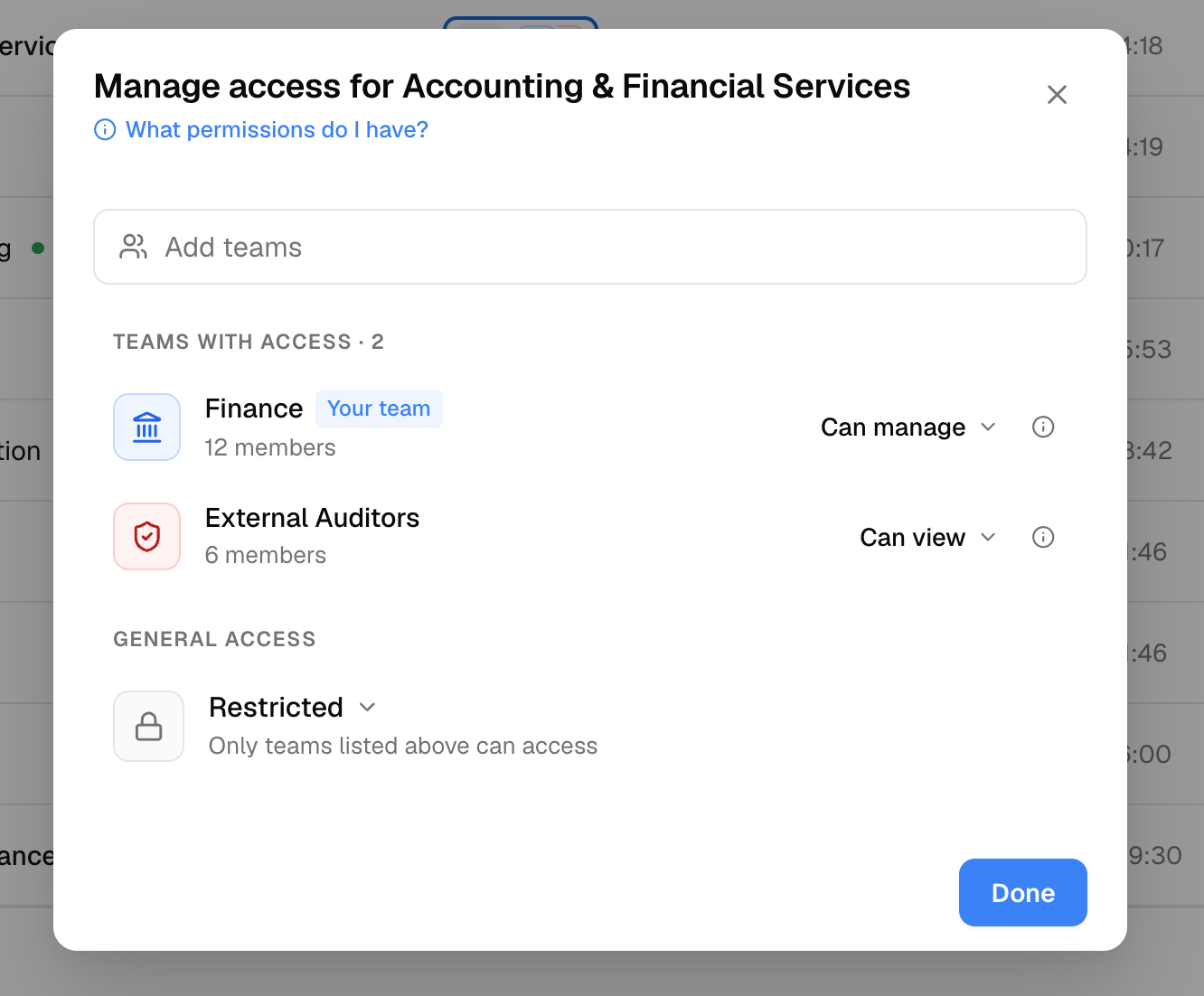
- Keep a clear line of sight into who has access to what. Access to each value stream is explicit, reviewable, and easy to confirm at any time — so you always know exactly who can see and shape your process index, and can move forward on it with confidence.
- Keep the right people focused on the right work. Scope each value stream to the Teams that own or contribute to it, so people aren’t wading through processes that aren’t theirs — and contributions land where they belong.
- Get more from what your process index produces. Because the right Teams are the ones shaping each value stream, the insights Klarity’s agents, Advisor, and reports generate downstream reflect the right people’s work — so you can lean on those outputs with even more confidence.
- Protect sensitive information. Restrict confidential value streams — compensation, legal, M&A, security runbooks — so only the Teams that should see them can.
When to use Fine-Grained Access Control
A few needs can look similar but are best solved in different ways. Use this to confirm FGA is the right tool for what you’re trying to do before you set anything up — and to point you to another feature where it will serve you better.Hide the process index entirely
Set different levels of access
- “Not everyone should see everything.” Restrict sensitive value streams — HR, legal, compensation, security runbooks — so only certain groups can see them.
- “The right people should own the right work.” Keep a value stream visible broadly, but let only its owning Team change it: Everyone → Can view, owning Team → Can manage.
Route who contributes where
- The Context Store is how you direct which Teams’ work feeds which parts of the process index. It’s the preferred path because routing often calls for more intelligent, nuanced customization than access levels alone can express — the kind of judgment AI can handle far better than a fixed permission on a value stream.
- FGA can help by controlling contribution at the value stream level — but doing so may require reorganizing your process index so Teams line up with L1 value streams (see Structuring your process index).
- Need help? Reach out to your Value Delivery team, who can connect you with the Applied AI team to get the most out of your Context Store.
Before you start
FGA is built on Teams. Access is always granted to a Team, never to an individual — so before you can restrict a value stream, the relevant Teams need to exist.Teams, in brief
A Team is a named group of users in your workspace. Teams are the unit you grant access to.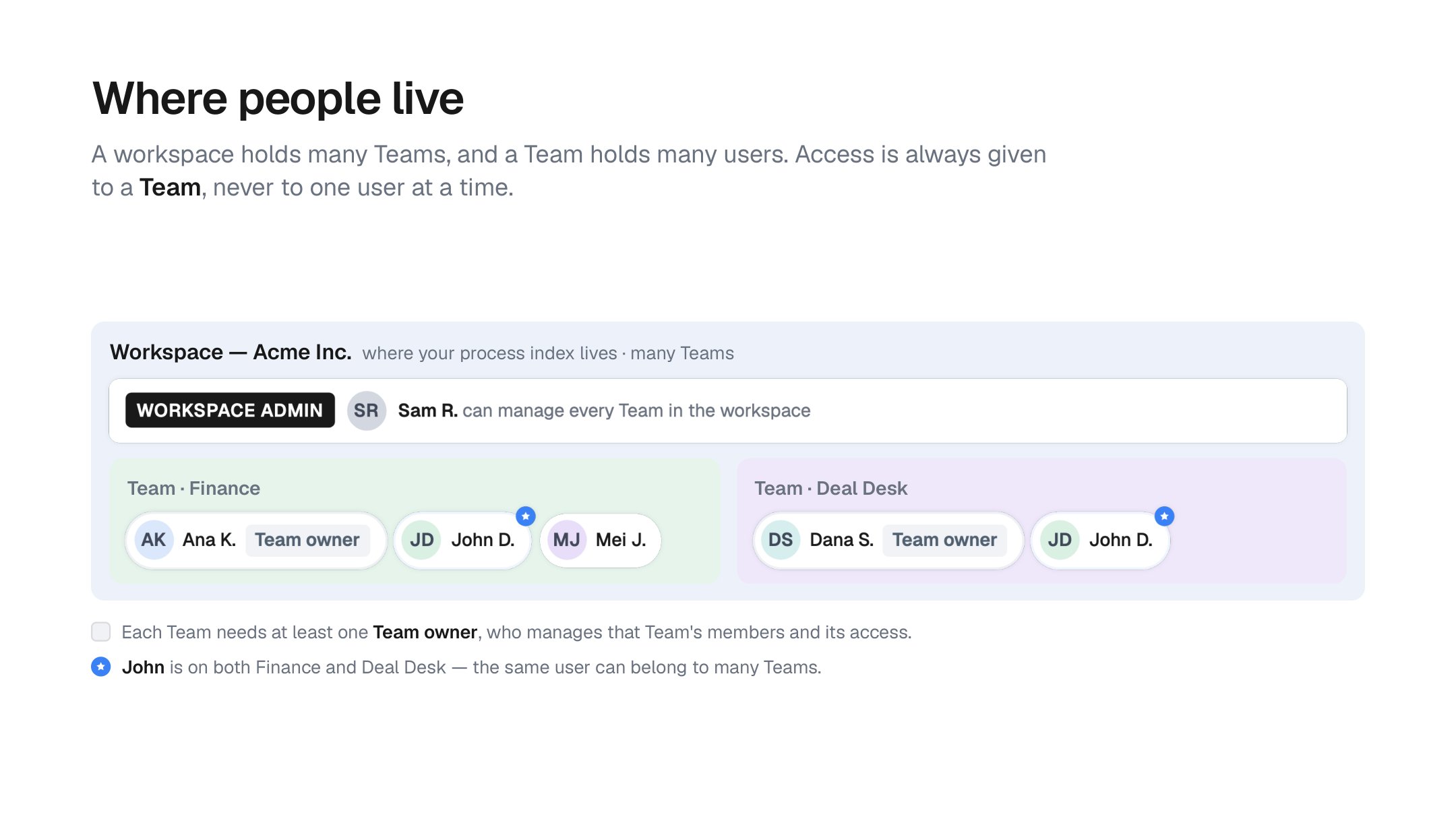
A workspace holds many Teams; a Team holds many people. Access is always granted to a Team — never to one person directly — and someone can sit on more than one Team.
- Teams are flat. There’s no nesting or hierarchy — a Team is a simple, named group.
- A user can belong to many Teams. Someone can be on both
FinanceandDeal Desk, and their access is the most permissive of everything they’re granted (see Highest access wins). - Every Team can have a Team owner. Team owners manage the Team’s membership — who’s in and who’s out.
- “Everyone at [Workspace]” is a built-in Team. Every workspace has a default Team containing all members. You’ll use it to grant broad, open access to a value stream.
Setting up your Teams
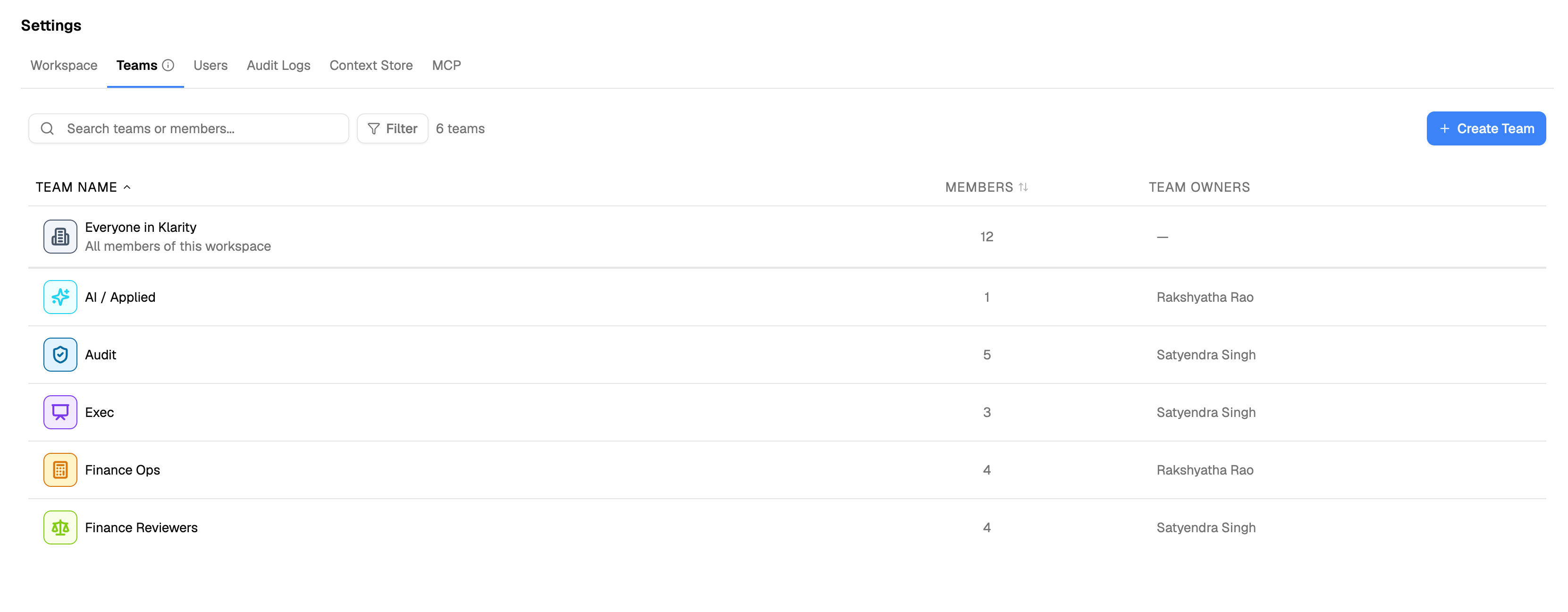
Open Teams settings
Create a team
Revenue Operations, Payroll, Security).Add members
Assign Team owners (optional)
Give the Team an icon
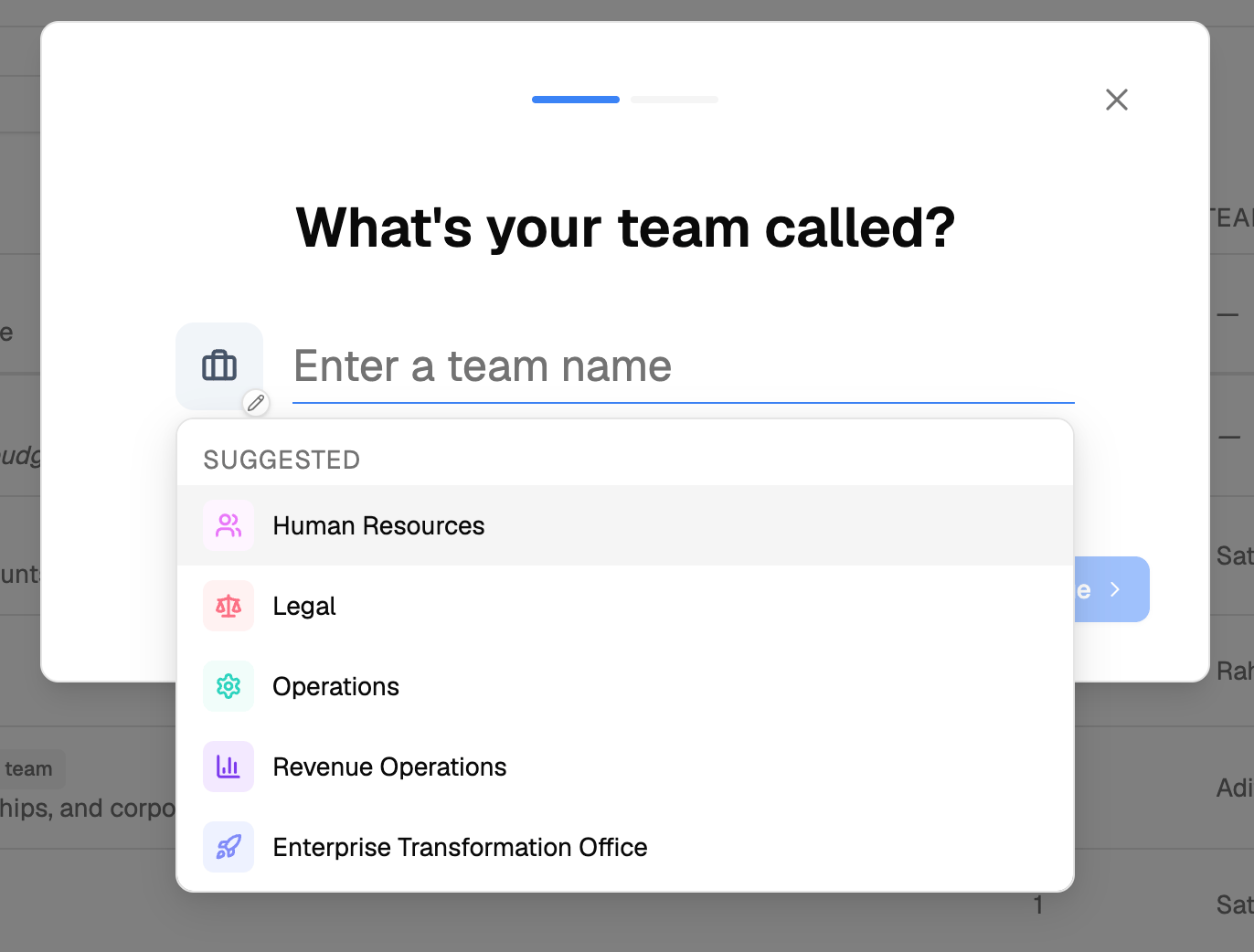
Step 1 — name the Team and choose an icon.
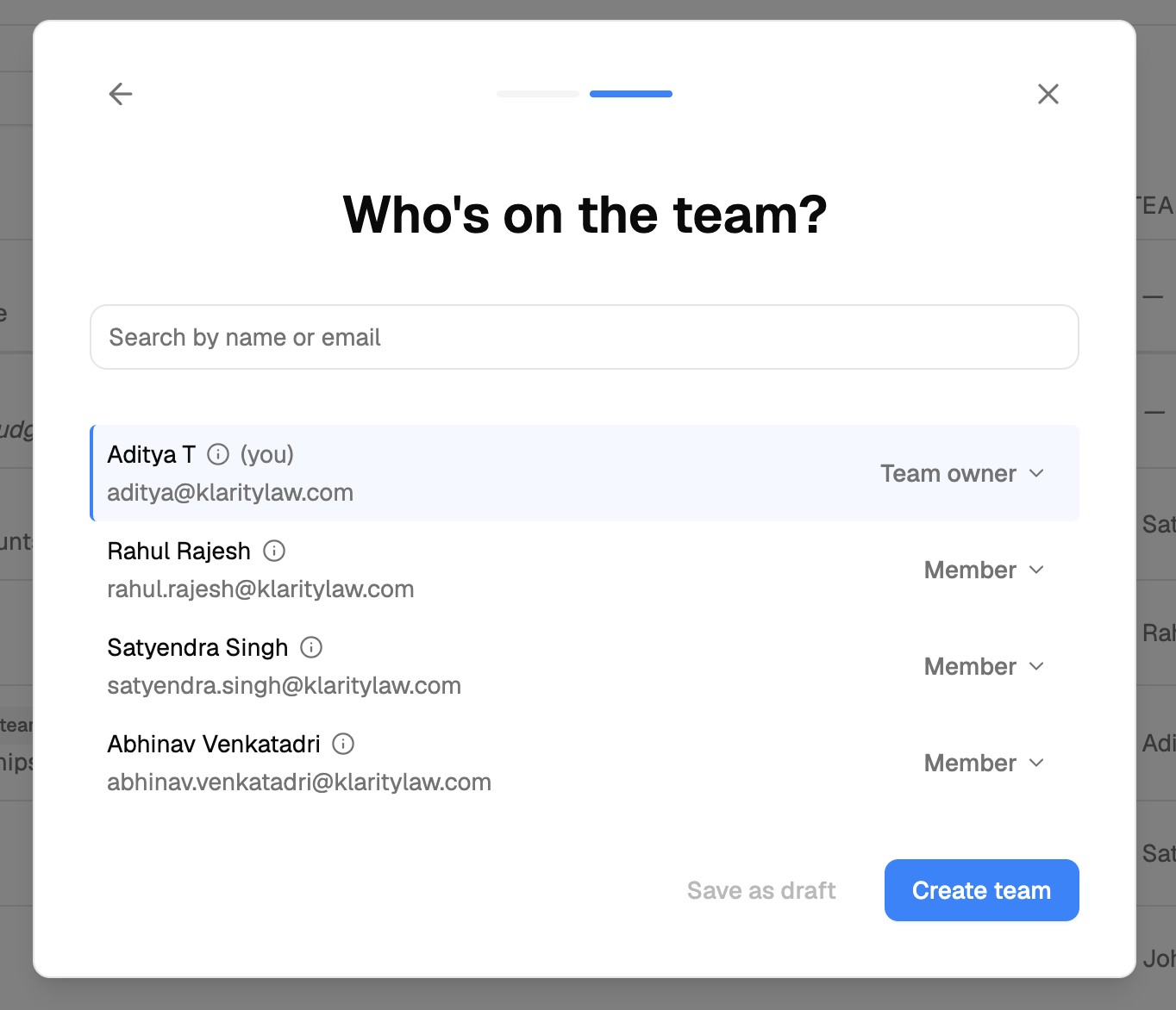
Step 2 — add members and set Team owners.
How FGA relates to your workspace roles
FGA doesn’t replace workspace roles — it works with them. Your role sets the ceiling; FGA decides which value streams you reach within it.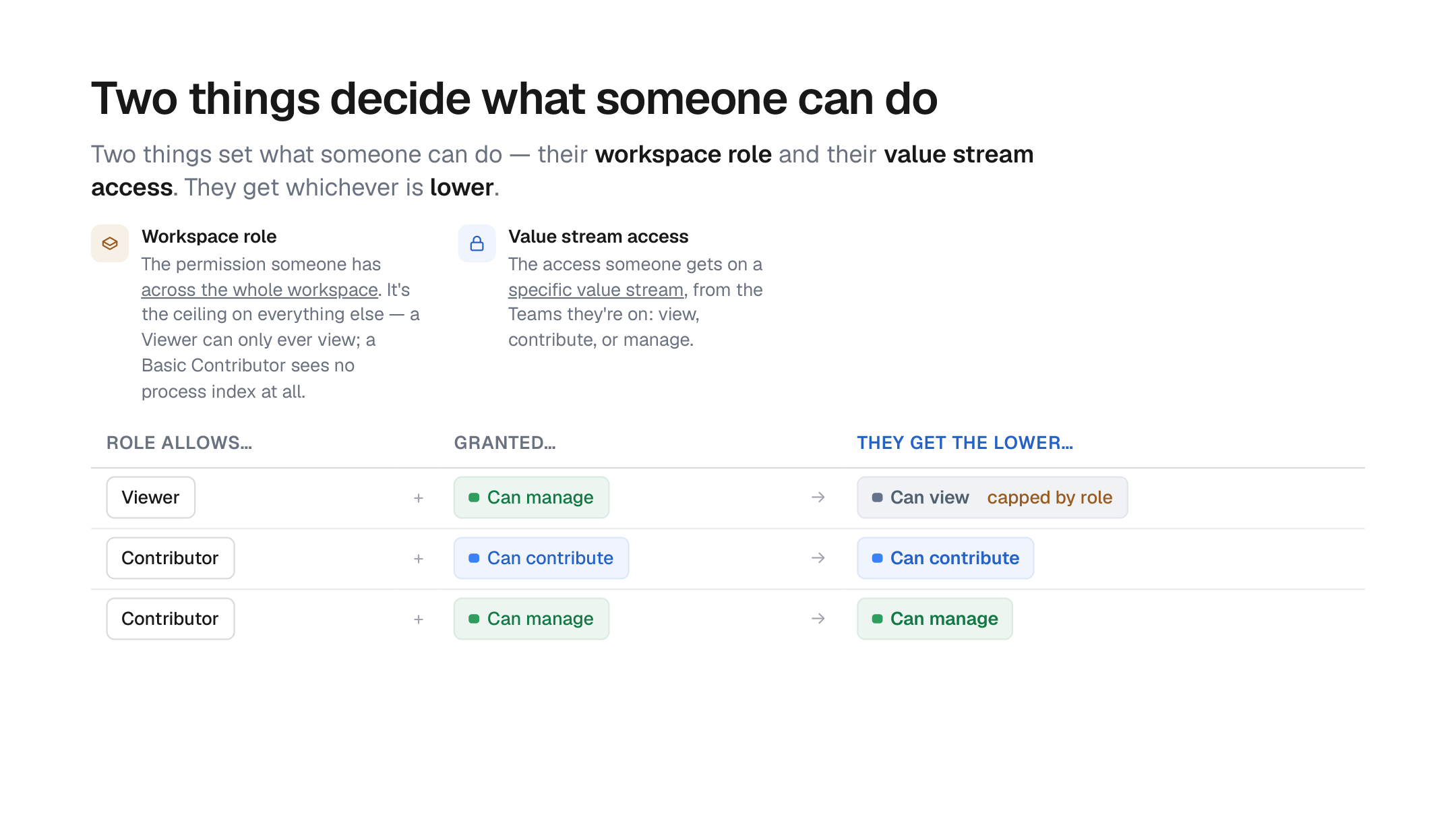
Two things decide what someone can do on a value stream: their workspace role (the ceiling) and the access their Teams are granted. They get whichever is lower.
- Basic Contributors never have process index access, with or without FGA. This is unchanged.
- Viewers are capped at view. Even if a Team grants them a higher level, a Viewer can only view.
- Contributors and Workspace Admins get whatever level their Teams are granted, up to their role ceiling.
- Workspace Admins are still subject to FGA. Admins do not automatically see restricted value streams. A restricted stream the admin’s Teams aren’t on stays hidden from them, exactly like anyone else. On value streams they can see, admins can always manage access.
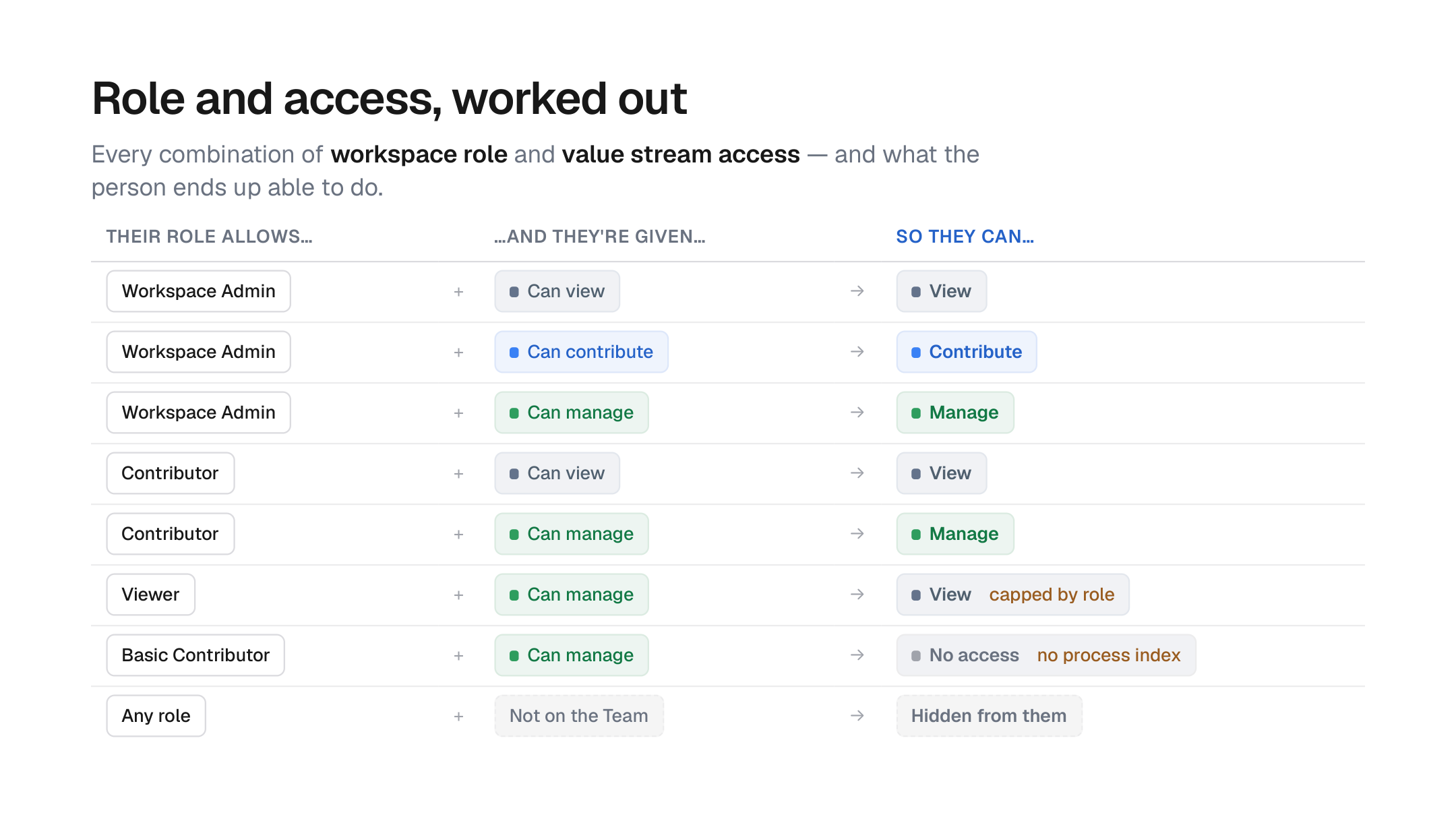
Every combination of workspace role and value stream access, worked out — and what the person ends up able to do.
How to set up FGA on a value stream
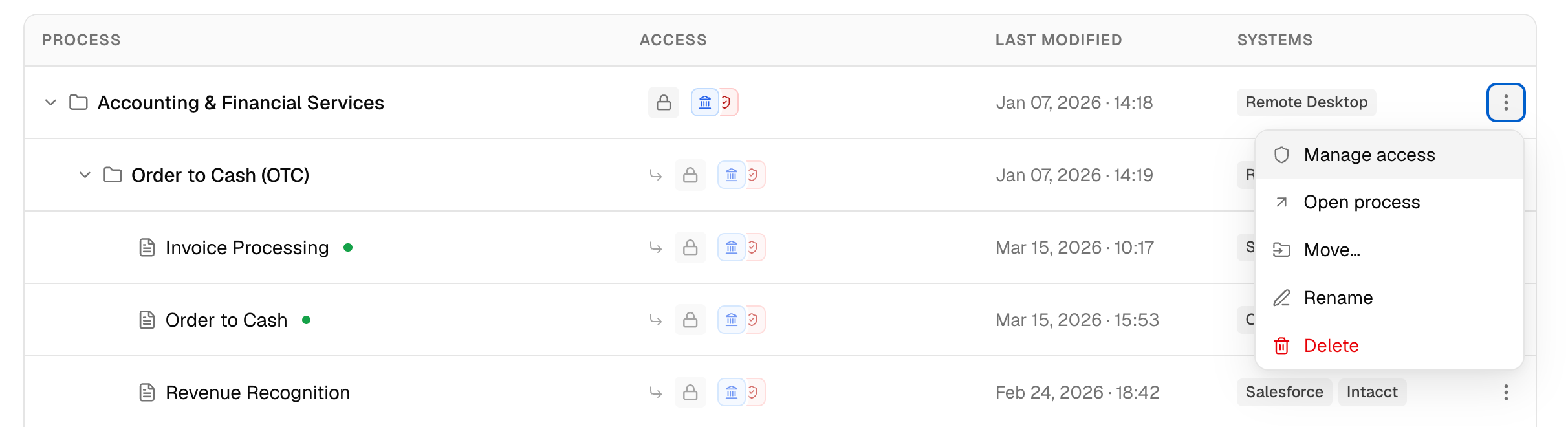
Open the value stream
Open access
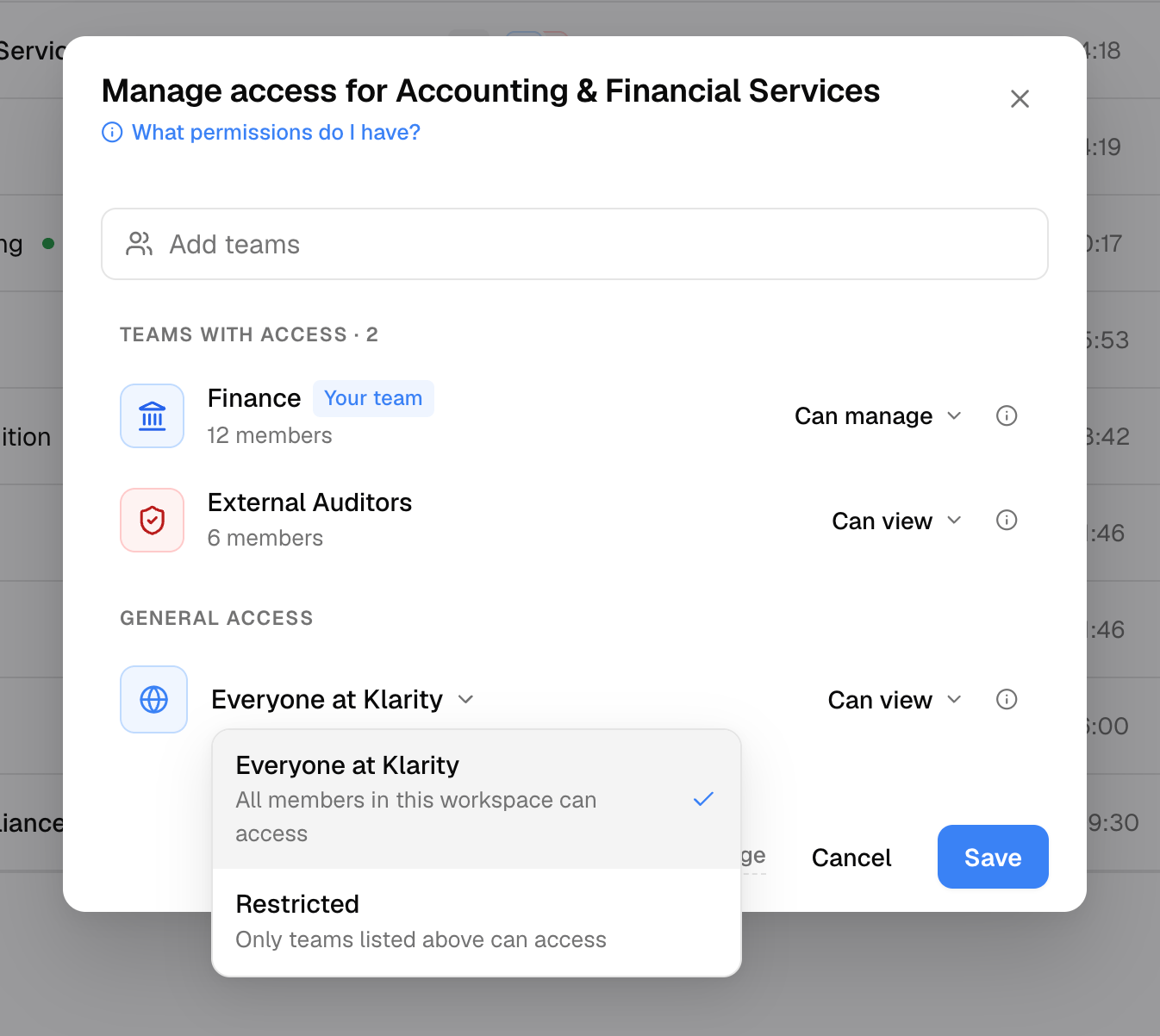
Set General access
- Choose Open to give the whole workspace a baseline (then pick Can manage / contribute / view for Everyone at [Workspace]), or
- Choose Restricted to hide the value stream from everyone except the Teams you add.
Add Teams with access
Review and save
How access works
Teams and levels are the setup; this is how permissions actually resolve once they’re in place. Expand any topic:Checking access
Checking access
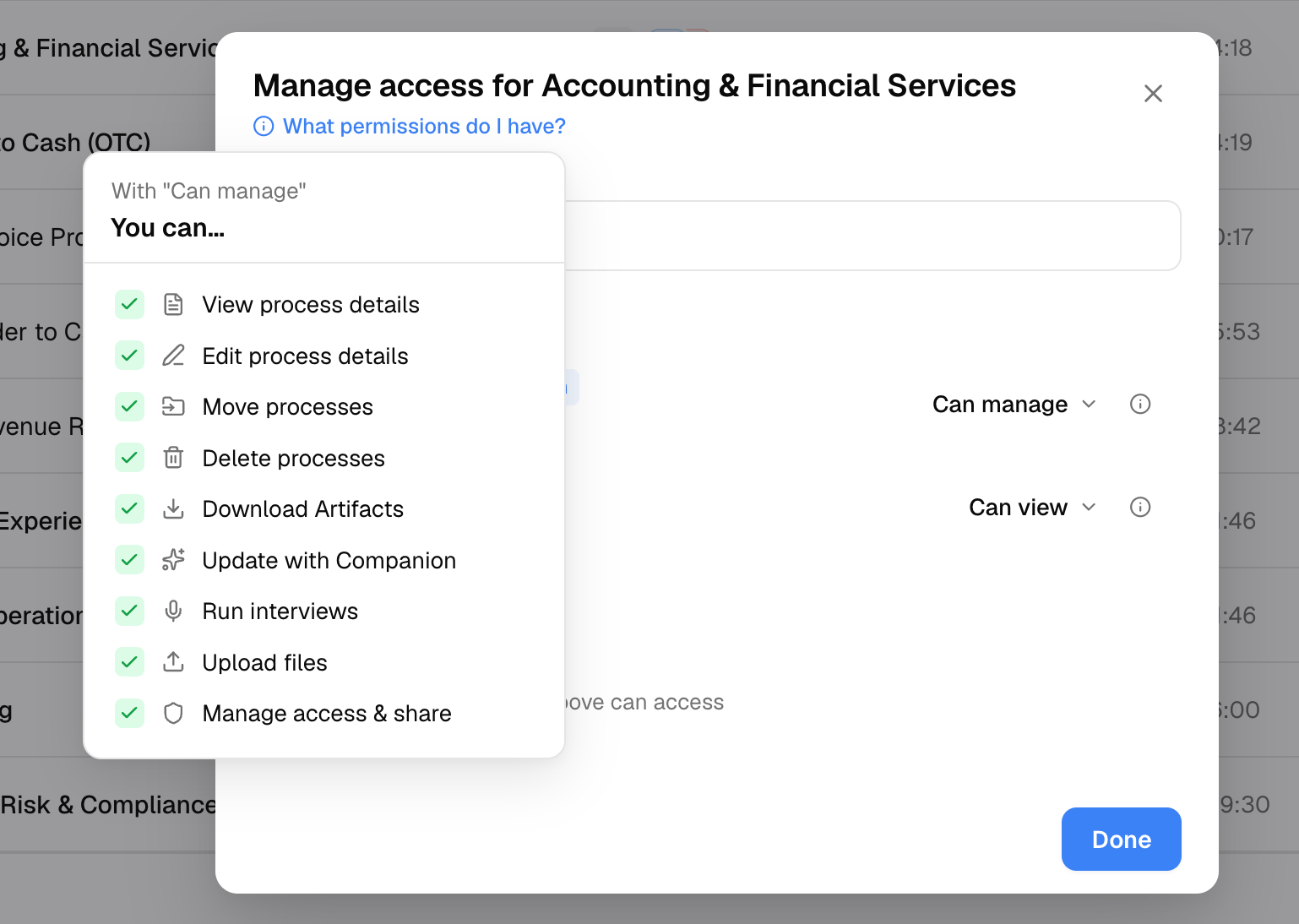
- “What can this Team do?” — the ⓘ icon next to a Team shows its effective capabilities, including any limits imposed by members’ workspace roles.
- “What permissions do I have?” — a link in the access modal that spells out your own effective access on this value stream and where it comes from. Useful when you’re not sure why you can (or can’t) do something.
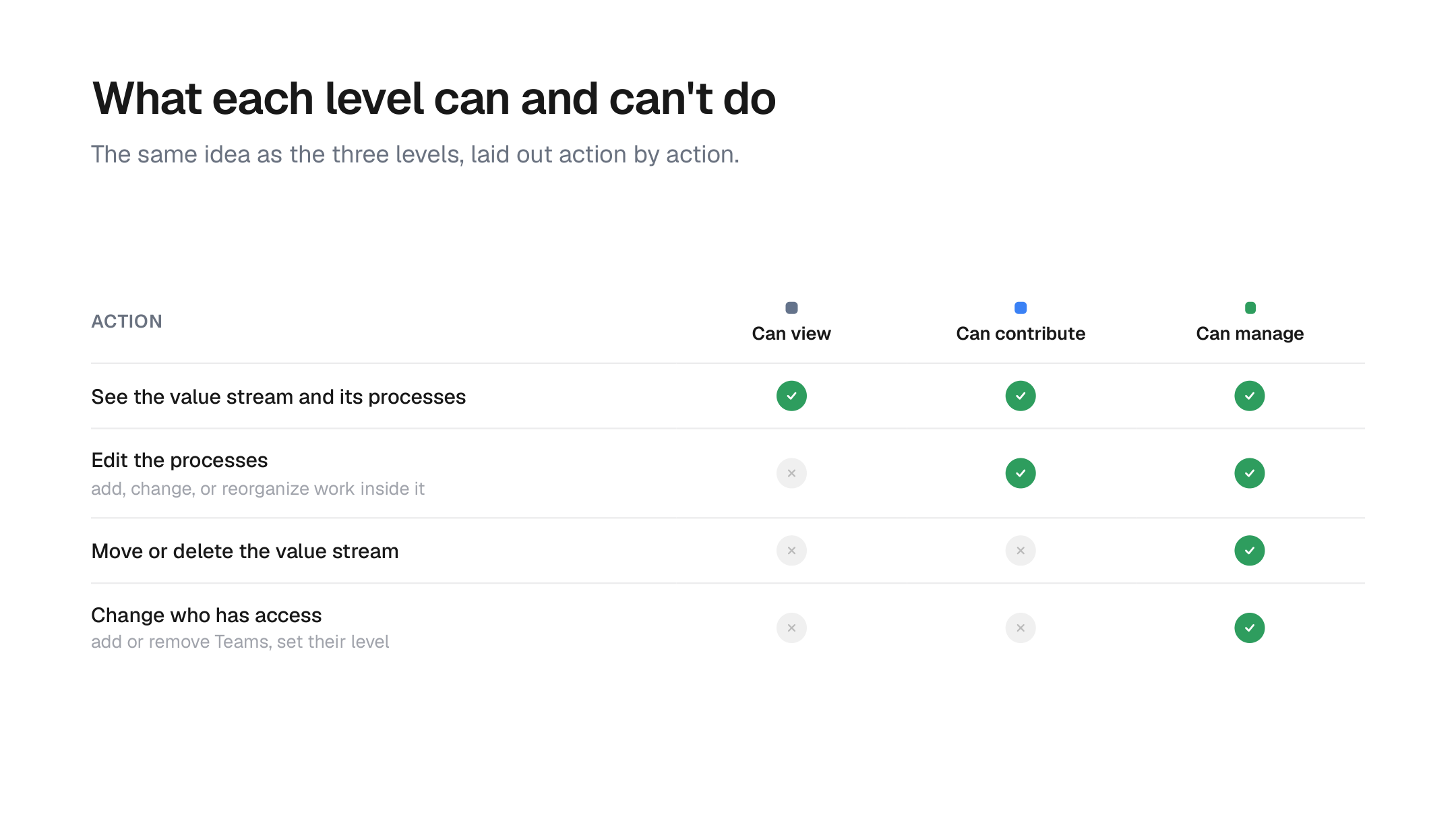
What each level can and can't do, action by action.
Permission levels — Can manage, contribute, view
Permission levels — Can manage, contribute, view
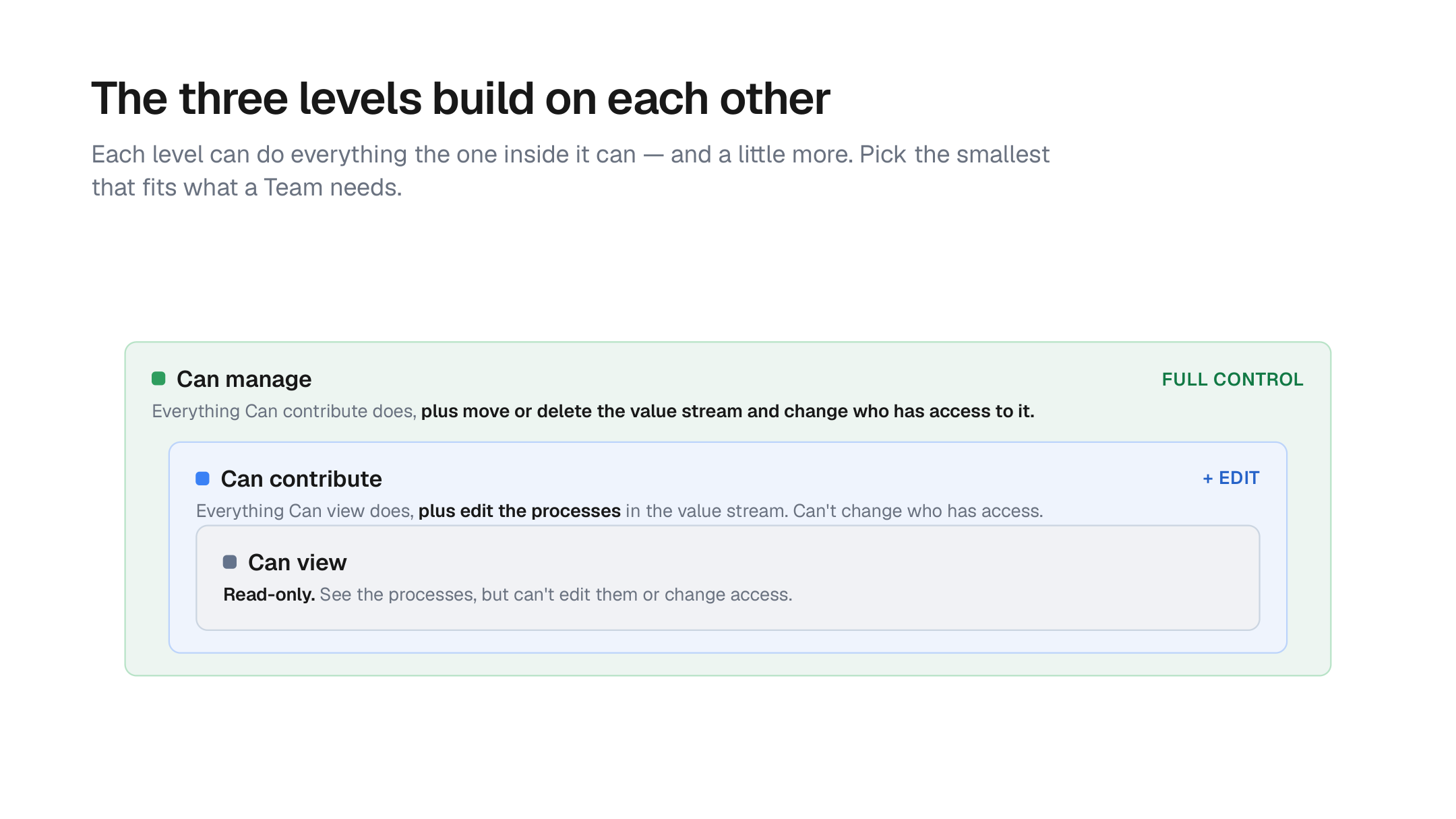
The levels build on each other: Can contribute does everything Can view does plus edit, and Can manage does everything Can contribute does plus move, delete, and change who has access. Pick the smallest that fits.
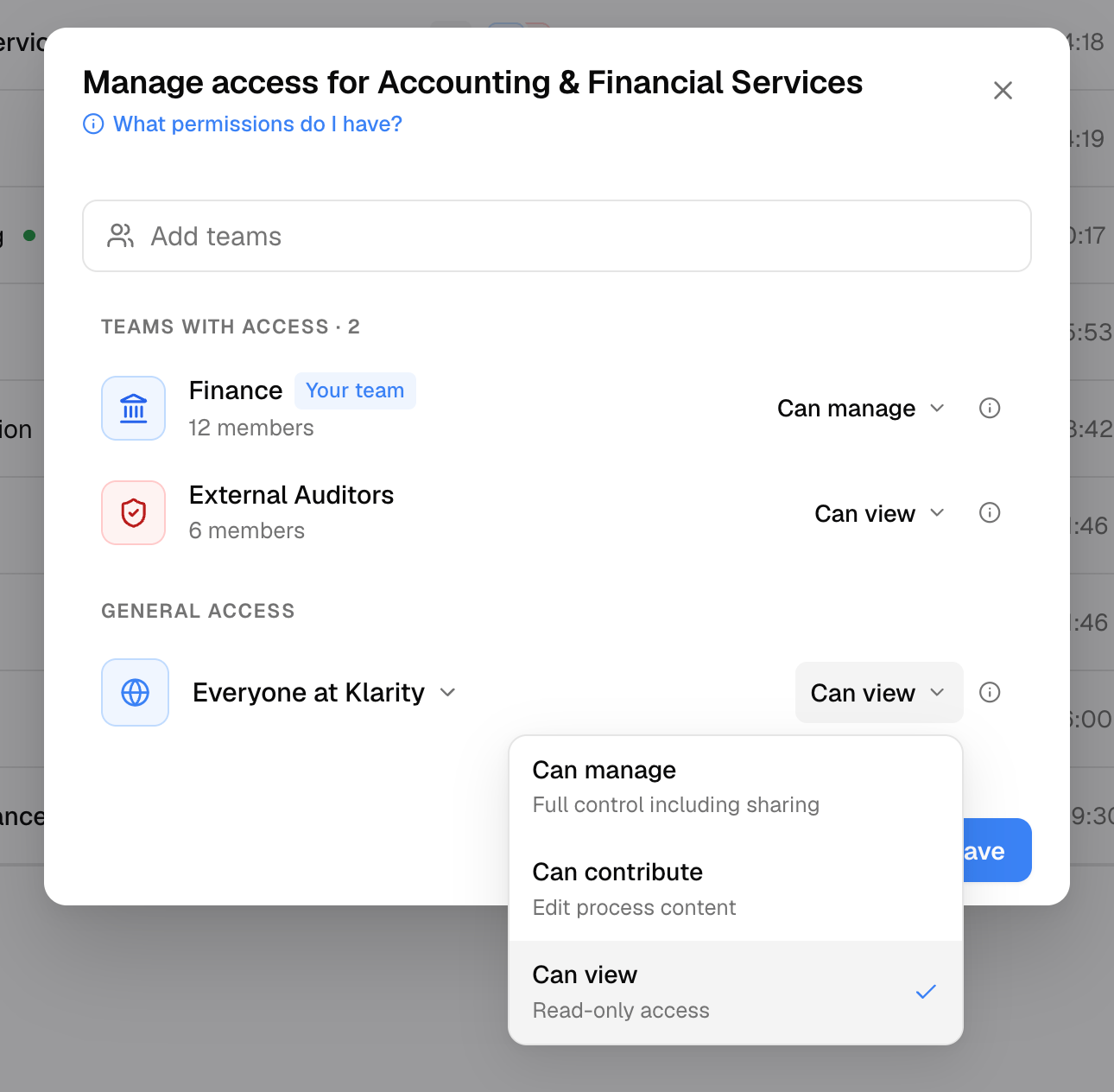
The two general-access modes — Open vs Restricted
The two general-access modes — Open vs Restricted
- Open — the Everyone at [Workspace] Team is granted a level (Can manage, Can contribute, or Can view). Everyone in the workspace gets at least that level, subject to their role.
- Restricted — the value stream is granted only to the specific Teams you add, and is completely hidden from everyone else — it disappears from their process index entirely, along with everything inside it.
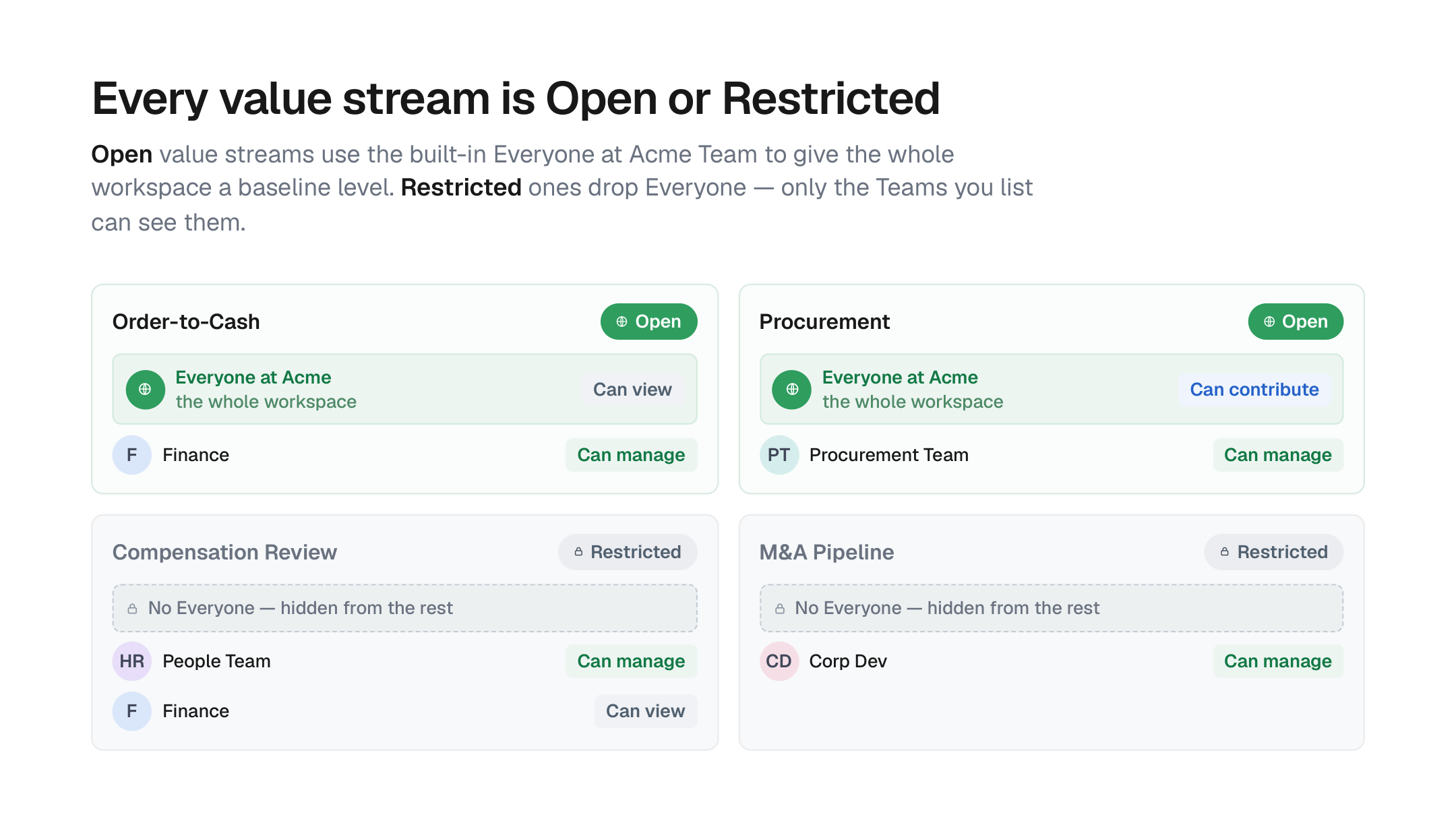
Open value streams include the built-in Everyone Team, giving the whole workspace a baseline level. Restricted ones drop Everyone — only the Teams you list can see them.
Highest access wins — how multiple grants resolve
Highest access wins — how multiple grants resolve
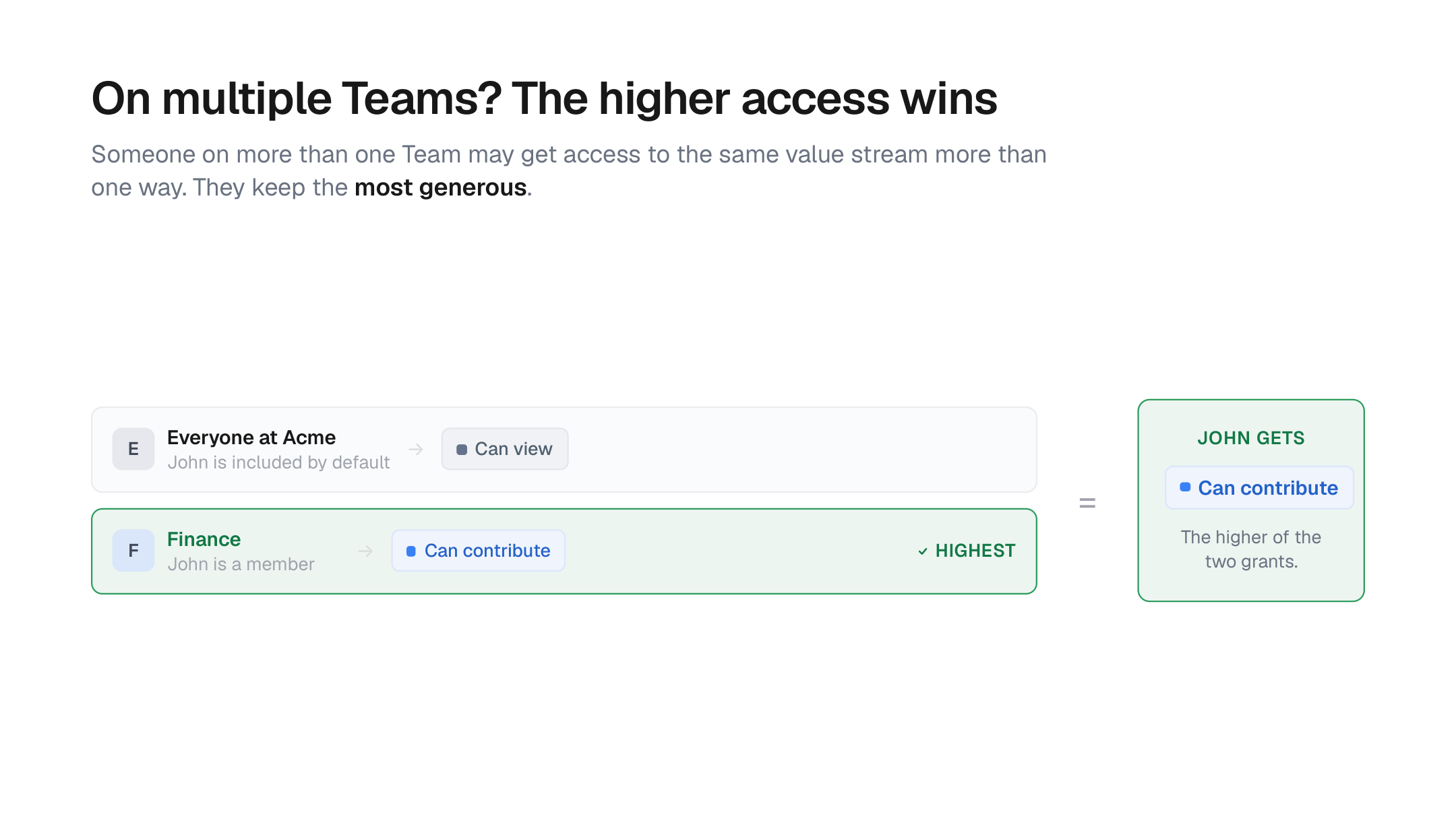
Someone on more than one Team keeps the most generous grant. Access only ever adds up — a narrower grant never pulls it down.
What's covered by access
What's covered by access
- Processes in the value stream, at every level beneath the L1 node, inherit the value stream’s access.
- Artifacts linked to a process — related files, or documents generated from a process — are bound by the same access as the process they’re linked to.
- Artifacts uploaded directly to the Library (not linked to any process) are not governed by FGA today. If a file needs FGA protection, link it to a process.
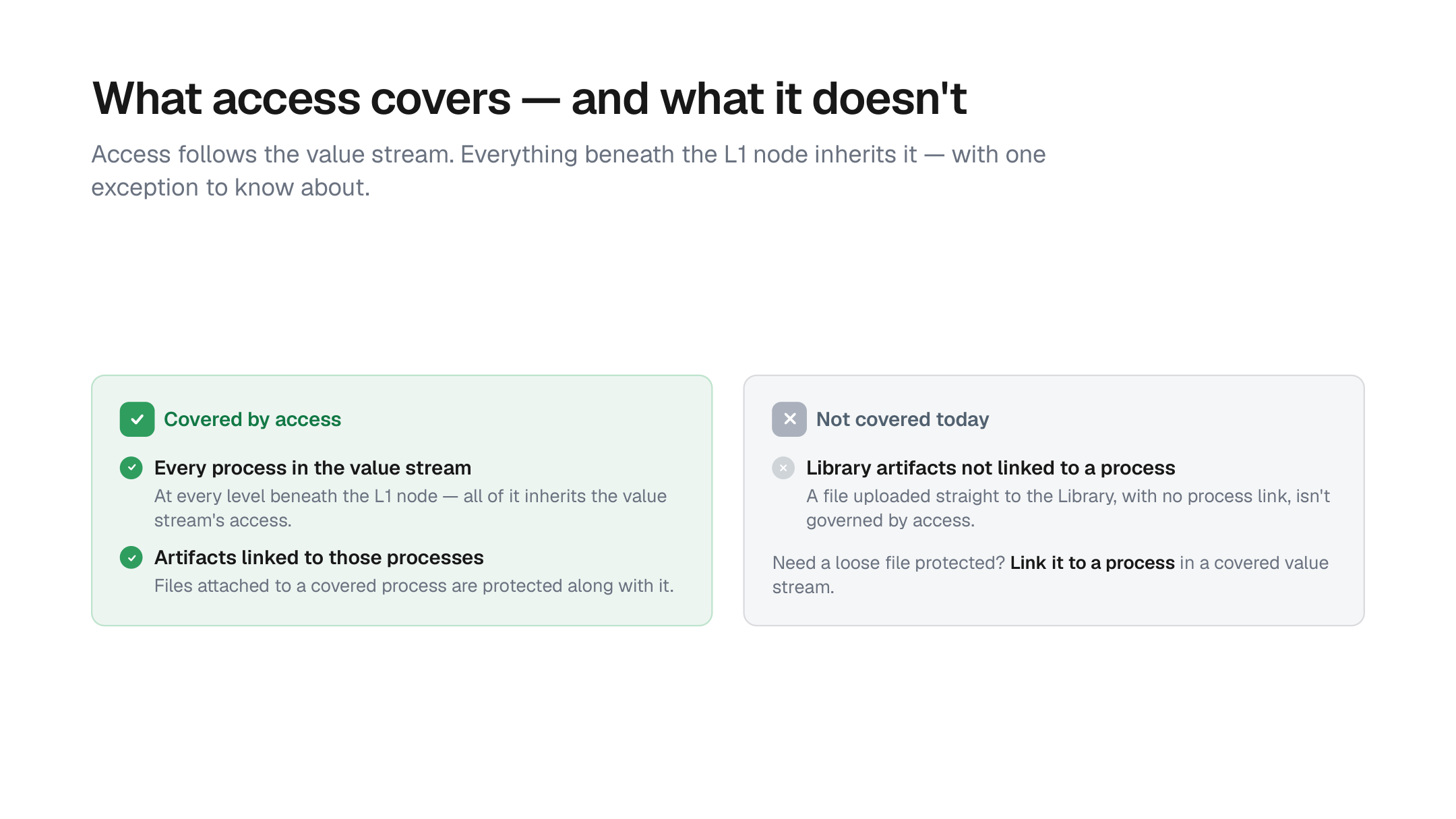
Access covers every process in the value stream and the artifacts linked to them. The one exception: files uploaded straight to the Library with no process link — link them to a process to bring them under access control.
Access applies everywhere — including AI
Access applies everywhere — including AI
- The Interviewer and Companion can only capture into processes you can contribute to.
- The Advisor and global AI chat only reason over value streams you can view.
- File-upload operations and the MCP tools are all bound by the same permissions.
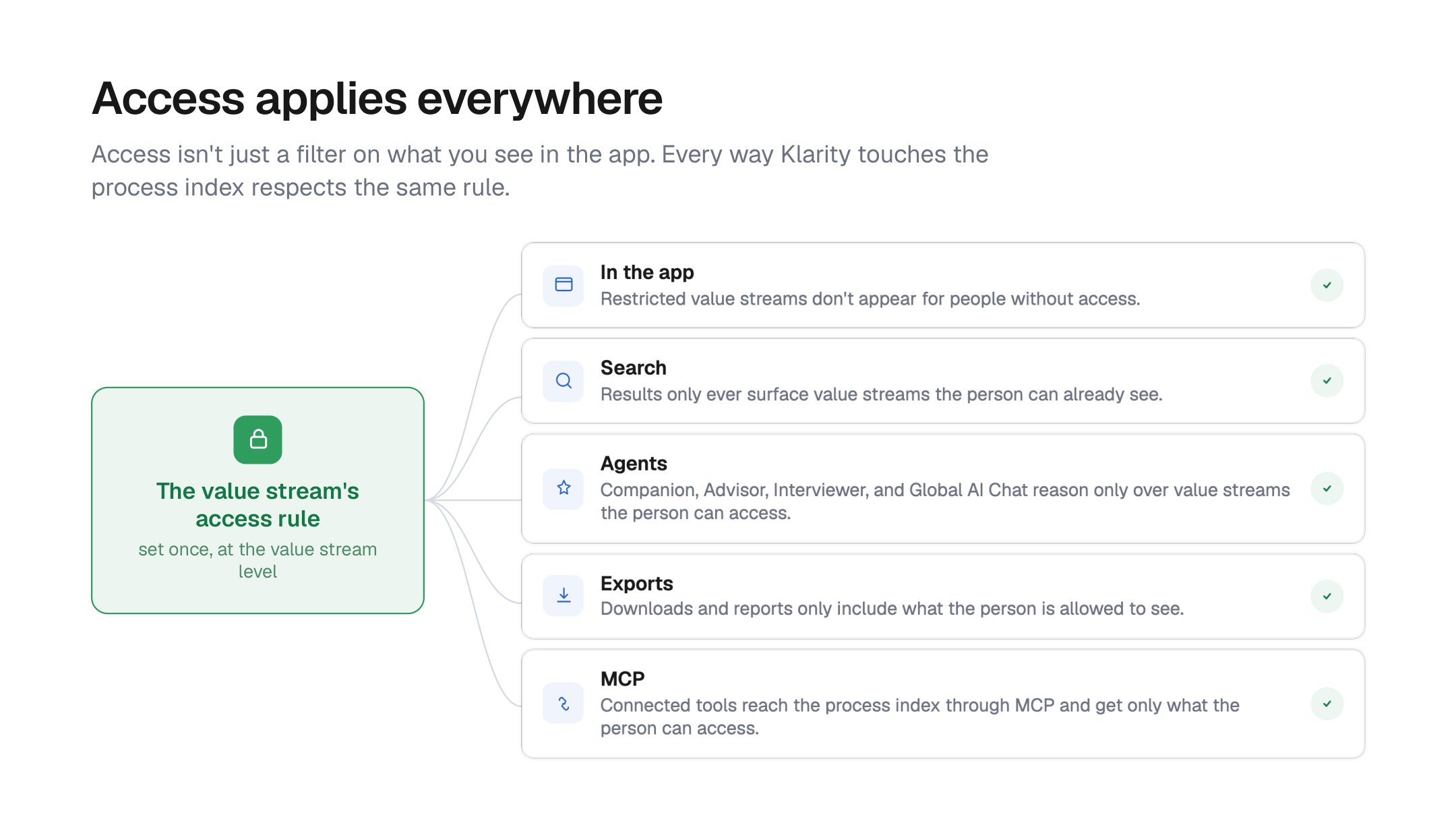
The value stream's access rule is enforced everywhere Klarity touches the process index — the app, search, the agents, exports, and MCP.
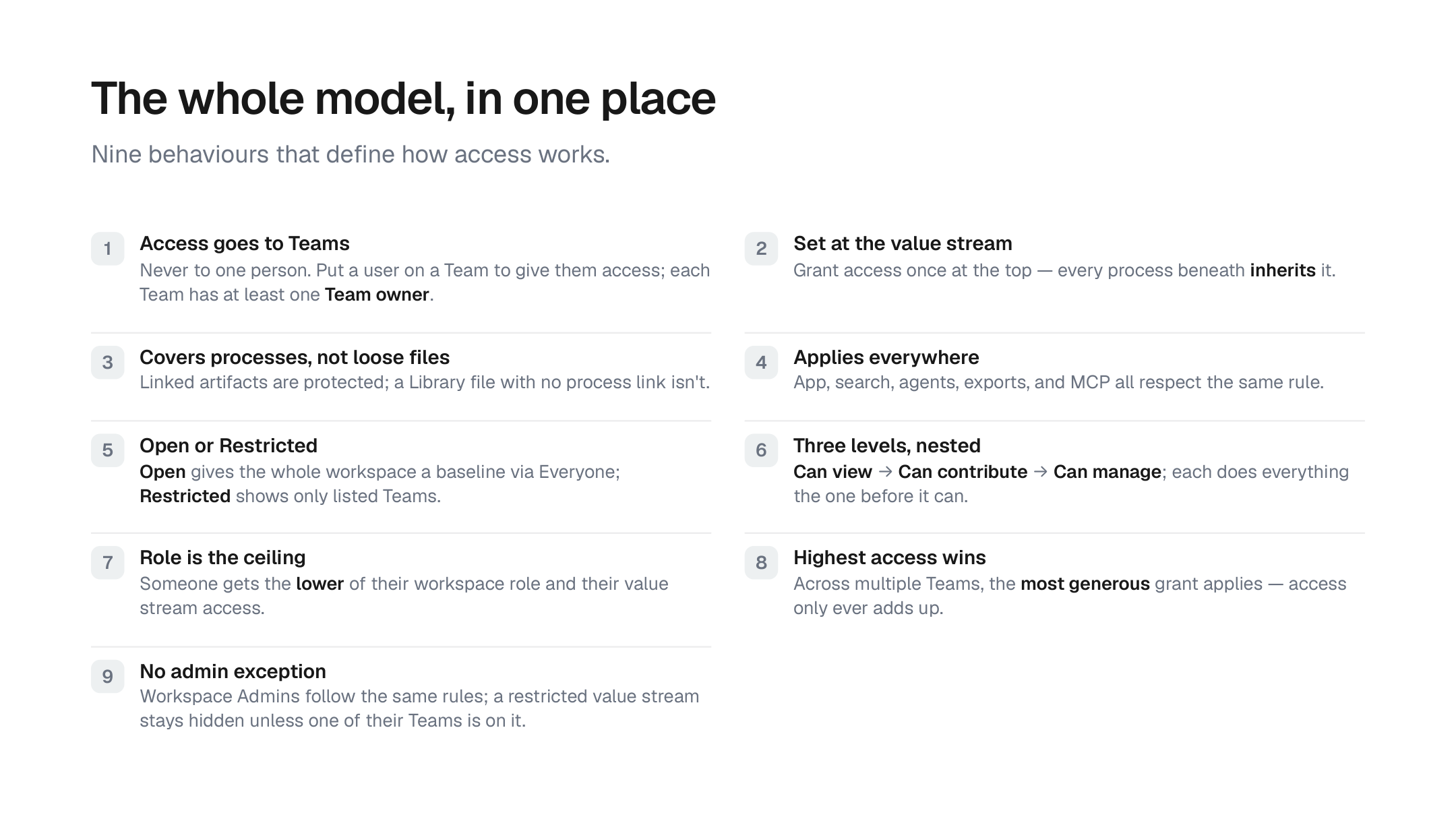
The whole access model in one place — nine behaviours that define how FGA resolves.
Why access is set at the value stream level
In this first version, access is applied at the value stream (L1) level — the top-level nodes of your process index. Here’s the thinking behind it.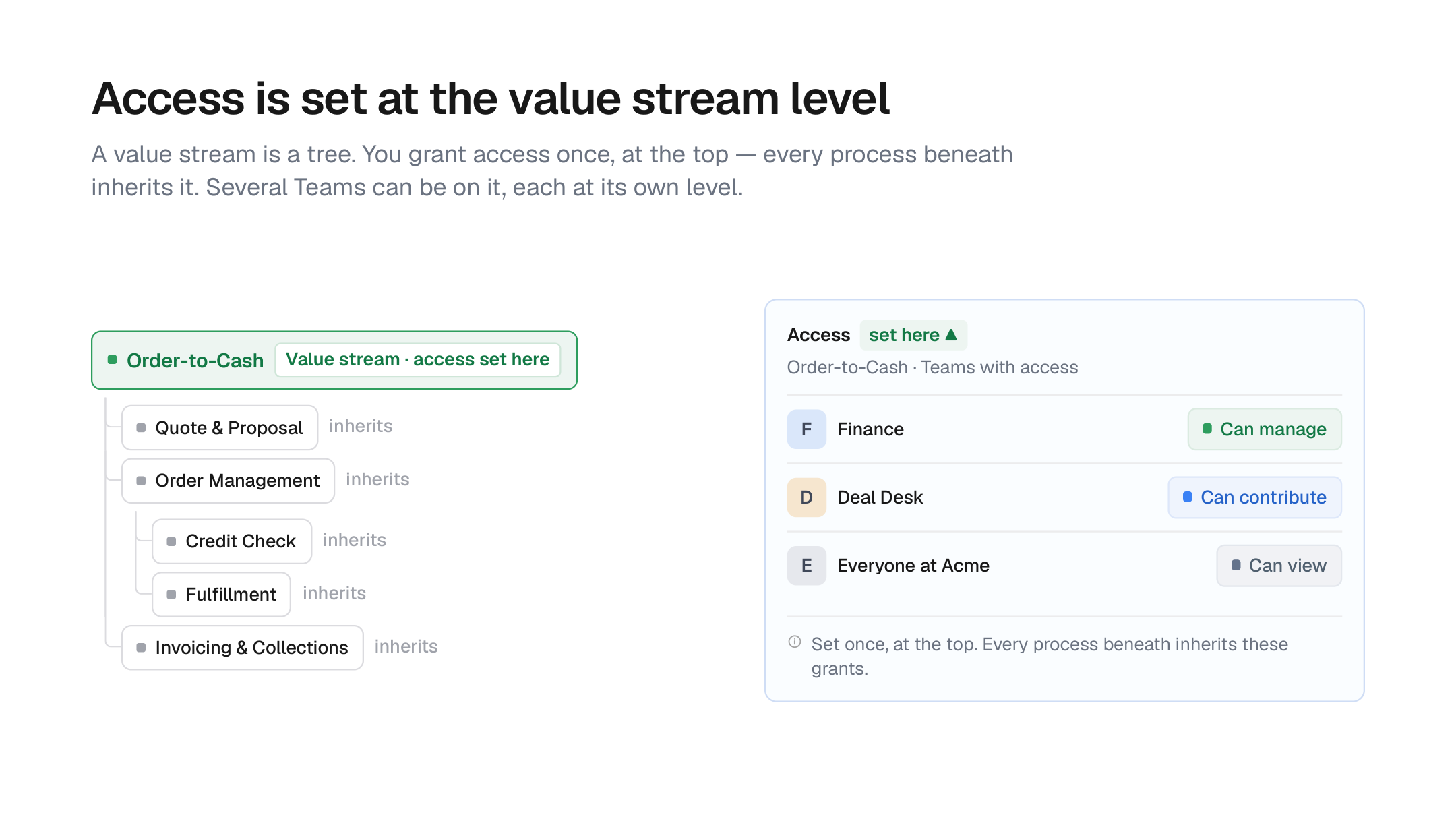
You set access once, on the value stream (L1) node. Every process beneath it inherits that access, and several Teams can be on the same value stream — each at its own level.
- Klarity’s agents — the Interviewer, Companion, Advisor, and the rest — read from and write to your process index on your behalf.
- At the value stream level, we’re confident these agents reliably respect the access boundaries you set.
- We’re actively extending that same reliability to deeper levels of the hierarchy, and as the underlying models continue to improve, access control will follow them down.
- Starting at the value stream level lets you get real value today, on a foundation the deeper levels build directly on top of — with no re-work when they arrive.
Structuring your process index for access control
Because this first version controls access at the value stream (L1) level, the shape of your process index matters. A little restructuring up front gives you clean, defensible access boundaries — and, importantly, no additional restructuring will be needed when deeper-level controls arrive. What you set up now is the foundation they build on. There are three patterns, and they combine freely.Pattern 1 — Broaden read, tighten write
Pattern 1 — Broaden read, tighten write
- Set General access → Open, Everyone → Can view.
- Grant the Teams that actually do the work Can contribute or Can manage.
Pattern 2 — Split a value stream into parallel L1 nodes
Pattern 2 — Split a value stream into parallel L1 nodes
Financial Close, holds everything from routine reconciliations to highly confidential executive-compensation accruals. With workspace roles alone, every Contributor and Admin can see all of it — including the comp work. That’s the risk FGA exists to remove.Comp Committee and Finance Leadership Teams. Advisor still reasons across both nodes as one coherent “Financial Close” story for the people who can see both.Pattern 3 — Model Teams as business units, and use attribute Teams sparingly
Pattern 3 — Model Teams as business units, and use attribute Teams sparingly
- Think of Teams as business units, not casual groups of people. The clearest, most durable setups map each Team to a unit that genuinely owns a body of work —
Revenue Operations,Payroll,Deal Desk— rather than to ad-hoc or one-off groupings. - Teams are flat in this version. There’s no nesting. To get the reach a hierarchy would give you, put a user on more than one Team — their access resolves to the most permissive of everything they’re granted (see Highest access wins).
- Team attributes — geo, segment, route-to-market — aren’t a separate dimension yet. If you genuinely need to separate access along an attribute, model it as its own Team:
Deal Desk – EMEA,Deal Desk – NA,Enterprise – West. Do this only where the attribute actually drives who should have access, and use it sparingly — spinning up a Team for every attribute combination quickly leads to Team sprawl that’s hard to maintain.
Customer Lifecycle, contains a commercially sensitive process — At-Risk Account Save Plays (which accounts are flagged as churn risks, and the retention discounts and executive escalations offered to keep them), three levels down under Renewals & Retention. Everything else in the stream is routine and useful for the whole org to see. And because accounts are owned regionally, EMEA save plays shouldn’t be visible to the NA team, and vice versa.Renewals & Retention → At-Risk Account Save Plays) so Advisor still reads it as part of Customer Lifecycle. Then grant access using region Teams modeled as business units:- The deep, sensitive L3 process is now isolated in its own restricted L1 node — invisible to everyone outside the region Customer Success Teams and Revenue Leadership — even though it originally lived three levels down.
- The geo split is handled with two flat Teams (
Customer Success – NA,Customer Success – EMEA) standing in for a region attribute Klarity doesn’t model natively, so each region only sees its own at-risk accounts. A leader who oversees both regions simply sits on both Teams. - The routine Customer Lifecycle work stays open for the whole org, and Advisor reconciles both nodes into one coherent story for anyone who can see them both.
Good to know
- Workspace Admins get no exception. Being a Workspace Admin doesn’t grant standing access to every value stream — admins can only manage value streams where one of their Teams has Can manage. If you want certain admins to manage any and all value streams, the recommended approach is to create an Admin team and add it, with Can manage, to the value streams they should administer. Multiple Teams can hold Can manage on the same value stream, so this layers cleanly on top of the owning Teams.
- Restricted means invisible, not just locked. A restricted value stream doesn’t appear grayed-out for people without access — it’s absent from their process index entirely, including everything nested inside it. It also won’t surface in their search or Advisor.
- Only Library-linked artifacts are protected. Files uploaded straight to the Library, with no process link, are not governed by FGA. Link sensitive files to a process to bring them under access control.
- Moving a process between value streams changes its access. A process inherits the access of the L1 it lives under. Move it to a different value stream and it takes on that stream’s audience — Klarity will confirm the change before applying it.
- Contributions to processes you can’t see show as Restricted. In the Process Index Sessions (contributors) tab, you see the details of a contribution only for processes you have access to. Work other users did on processes you can’t access appears labeled Restricted — you’ll see that a contribution happened, but not its content.
- The Operations tab is scoped by role and by process access. With FGA enabled, Contributors and Viewers see only their own operations in the Operations tab; only Workspace Admins can see all operations. And regardless of role, if an operation ran on a process you don’t have access to, the output artifacts tied to that process may not be visible to you.
FAQ
Can I grant access to an individual person instead of a Team?
Can I grant access to an individual person instead of a Team?
Can Teams be nested or hierarchical?
Can Teams be nested or hierarchical?
Can I set different access on a sub-process, lane, or folder within a value stream?
Can I set different access on a sub-process, lane, or folder within a value stream?
Is there a timeline for deeper-level access control?
Is there a timeline for deeper-level access control?
Can a Workspace Admin manage access to a value stream when none of their Teams has Can manage on it?
Can a Workspace Admin manage access to a value stream when none of their Teams has Can manage on it?
Can a Workspace Admin see a restricted value stream their Teams aren't on?
Can a Workspace Admin see a restricted value stream their Teams aren't on?
A user is on two Teams with different levels — which applies?
A user is on two Teams with different levels — which applies?
If I switch a value stream from Open to Restricted, will I lose my own access?
If I switch a value stream from Open to Restricted, will I lose my own access?
Does splitting a value stream into two nodes hurt Advisor or report quality?
Does splitting a value stream into two nodes hurt Advisor or report quality?
Do the AI agents respect these permissions?
Do the AI agents respect these permissions?
We run several workspaces to keep audiences separate. Should we consolidate?
We run several workspaces to keep audiences separate. Should we consolidate?