

1. Get access and open Companion
Once your workspace admin has added you, log in to Klarity Architect at app.klarity.ai using your company’s sign-in method. From your home screen, open Companion (the side panel, or the chat bubble). If you need access, see How to add a user to your workspace.2. Set up your role profile
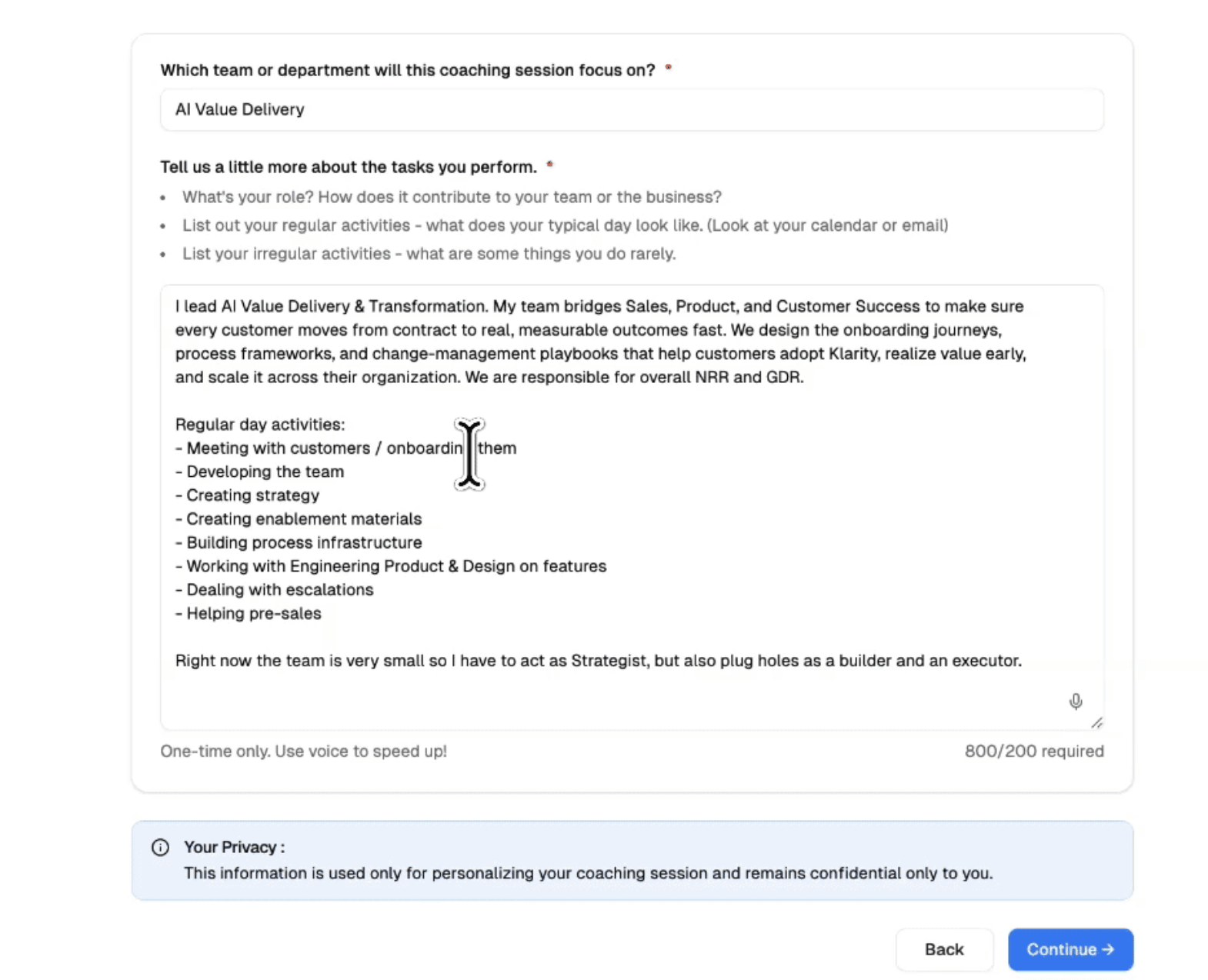
Before your first session, set up your role profile — this tells Companion what your work looks like so it can recognize your activities. Do this once.- If you’re in an onboarding sprint: the Klarity team usually designs your role profile for you and gives you a starting point. Confirm it looks right and adjust if needed.
- If you’re setting it up yourself: use the voice-to-text option to describe your role out loud — what you do, the systems you use, the kinds of tasks you run — then fill in the rest from what you already know about your role. The more accurate this is, the better Companion’s capture.
3. Start the session and share your screen
- Click Start session and share your screen.
- Work as you normally would. Companion observes quietly in the background and identifies the activities you perform — you don’t need to do anything special or “perform” for it.
Your privacy is protected. No PII is captured in what’s kept — screenshots are processed briefly and then permanently deleted, and only text-based outputs are retained. Companion also automatically omits anything that doesn’t look like company work (personal browsing, sensitive content, off-topic activity). You can pause or end the session anytime.
4. Review and submit at the end
When you end the session, you’ll see what Companion captured:- Your activity timeline — the work it identified, grouped into activities. Review it, and edit, recategorize, or exclude anything that isn’t right.
- Signals — noteworthy observations (workarounds, friction) that surface through the session, concentrating toward the end. You choose which, if any, to share.
5. What happens after you submit
Submitting hands your session off to the indexing agent. It takes the clusters of work you did and figures out, for each one, whether it’s a new observation of a process that already exists — or a new process it should create on your behalf. Your contribution shows up in the Process Index right away, no manual mapping required. The more sessions you run, the richer the picture: repeated observations of the same process build a baseline and surface patterns over time.Where to go next
Capturing current state — quick reference
The full reference for all three capture methods.
Navigating your Process Index
See where your captured work lands and how to manage it.